Create, Join & Leave Workareas
Workareas carve your workspace into dedicated zones — one per team, project, or department. Join only the ones you actively work in to keep your sidebar clean 📚
Browse Workareas
To see everything available:
- In the left sidebar, click
••• More - At the top, you'll see the workareas you're already a member of
- Below that, you'll see all other open and closed workareas in the workspace
note
Private workareas exist. Only members or owners can invite others to join them — and they're completely hidden from non-members.
Create a Workarea
Way to create one:
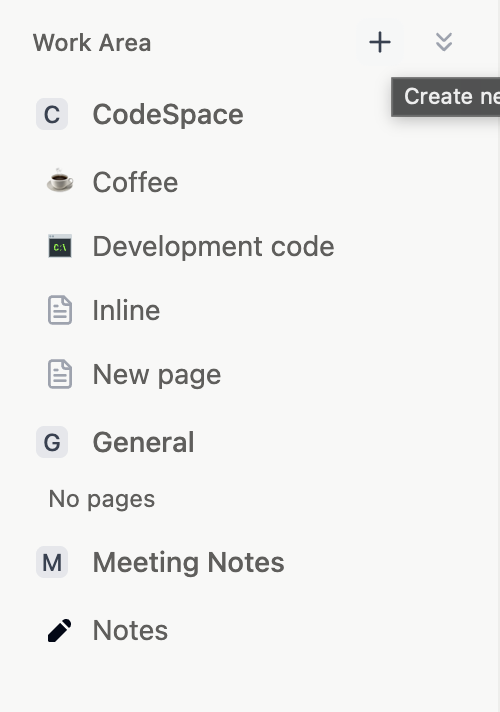
- Scroll to the Workareas label in the sidebar and click the
+button
note
Workarea creation may be restricted to workspace owners. Check Settings → Workareas to see what your permissions allow.
Add Members and Assign Roles
- Hover over the workarea name in the sidebar
- Click
•••, then select Workarea settings - Click Add members or search for specific people or groups
- Use the dropdown next to each name to assign their role
Join or Leave a Workarea
Joining
- Open workareas: Join directly from the browse menu
- Closed workareas: Click Request to ask for access — an owner will need to approve
Leaving
- Hover over the workarea name in the sidebar
- Click
••• - Select Leave workarea
Up next: Search — Find any page or piece of content in your Closot workspace instantly.