Manage Members & Guests
Your Closot workspace can accommodate both internal team members and external guests. Members are part of your organization and have workspace-wide presence; guests are external collaborators invited on a page-by-page basis with limited access. This article covers how to add, manage, and remove both.
Add Members
Invite by Email
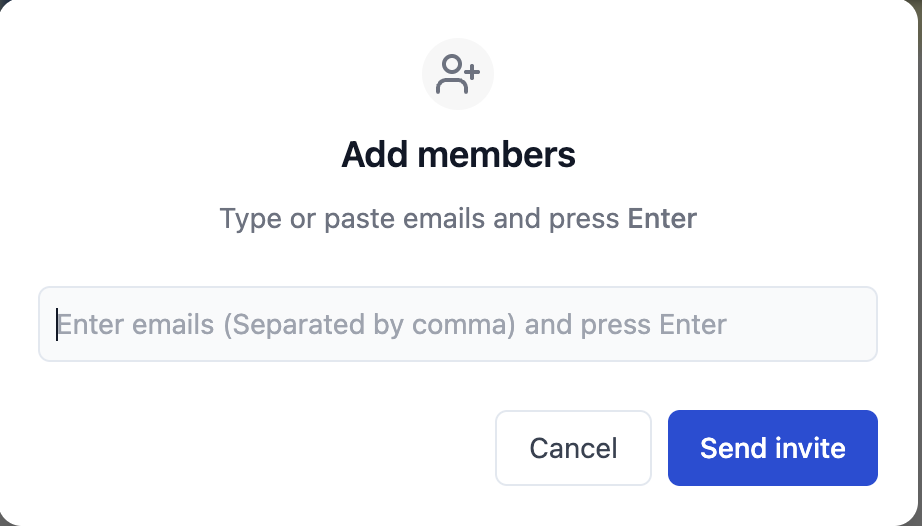
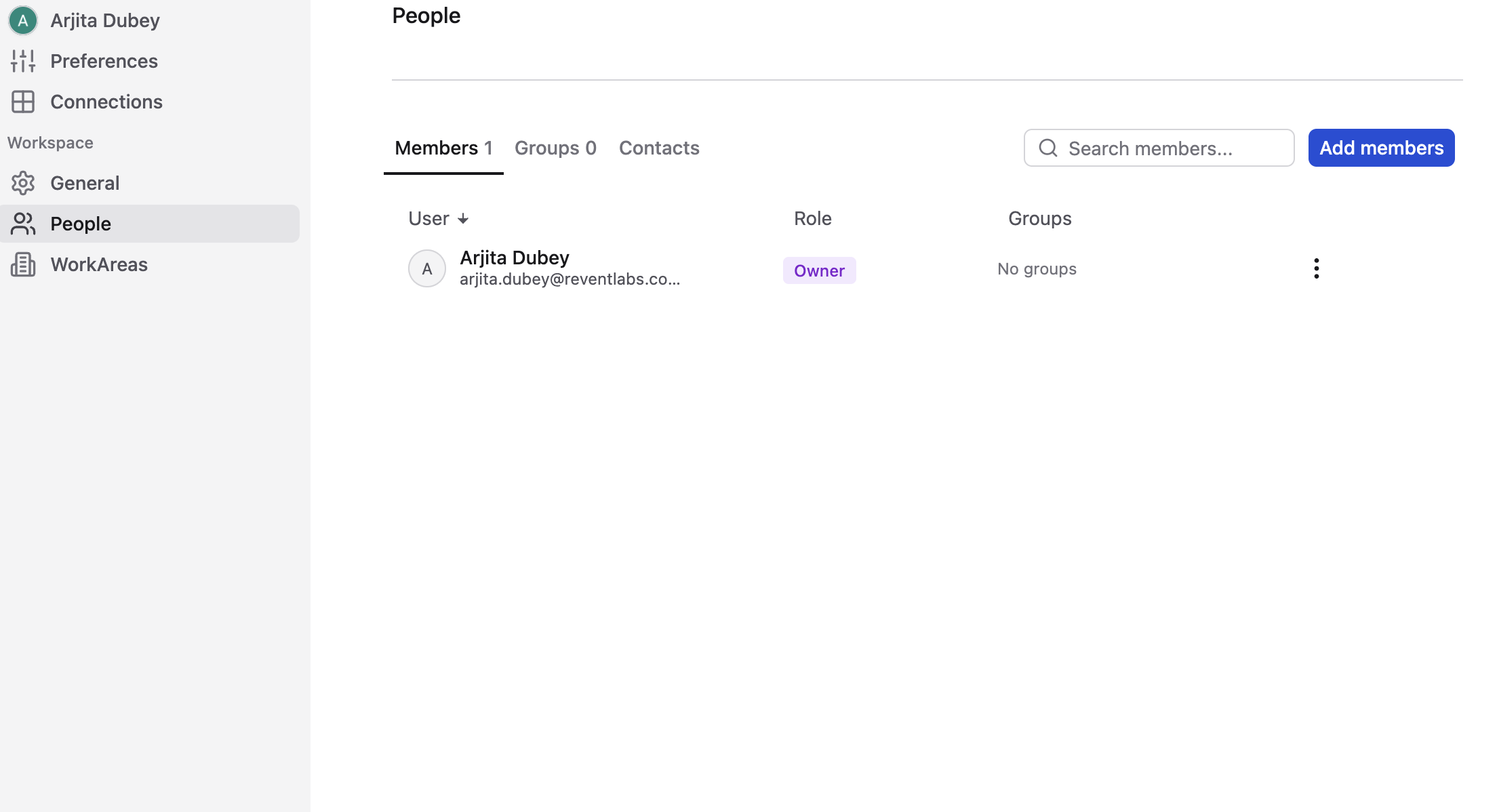
- Go to Settings → People (or Members) → Members tab
- Click Add members
- Enter one or more email addresses
- Assign a role: Workspace owner, Membership admin, or Member
- Click Invite
Share an Invite Link
Rather than inviting people one by one, you can generate a shareable link that anyone can use to join the workspace automatically:-
Settings → People → Members tab → click Copy link
Allow Specific Email Domains
Workspace owners can configure allowed email domains so that anyone with a matching company email address can join the workspace automatically, without needing a manual invitation:- Settings → Settings → Allowed email domains → enter your domain(s)
Change a Member's Role
Settings → People → Members tab → open the dropdown next to the member's name → select a new role
Add Guests
Invite from a Page
- Click Share at the top right of any page
- Enter the guest's email address
- Select an access level from the dropdown
- Click Invite
Handle Guest Access Requests
By default, non-members can request access to pages they discover. When a request comes in, the page creator receives a notification in their Inbox to approve or deny it.
Controlling who can be invited:
Workspace owners set the domain policy that governs which email addresses members are allowed to invite — restricting invitations to your organization's domain, extending them to specific allowed domains, or opening them to any address. See Workspace Settings.
Promote an External Collaborator to a Member
External collaborators you've shared individual pages with are listed under Settings → People → Contacts. To give one of them full access to the workspace, invite them as a member from the Members tab using the same email address. They keep everything already shared with them and gain workspace-wide access on top.
Remove Users
Remove a Member or Guest
- Settings → People
- Select the Members tab for workspace members, or Contacts for external collaborators
- Open the
⋮menu next to the person's name - Select the remove option