Account Settings
Your account settings let you personalize how you appear to teammates across Closot — from the photo that shows up next to your comments, to the name that gets displayed when you're @-mentioned or assigned to a task. Both can be updated quickly from the Settings panel on desktop or web.
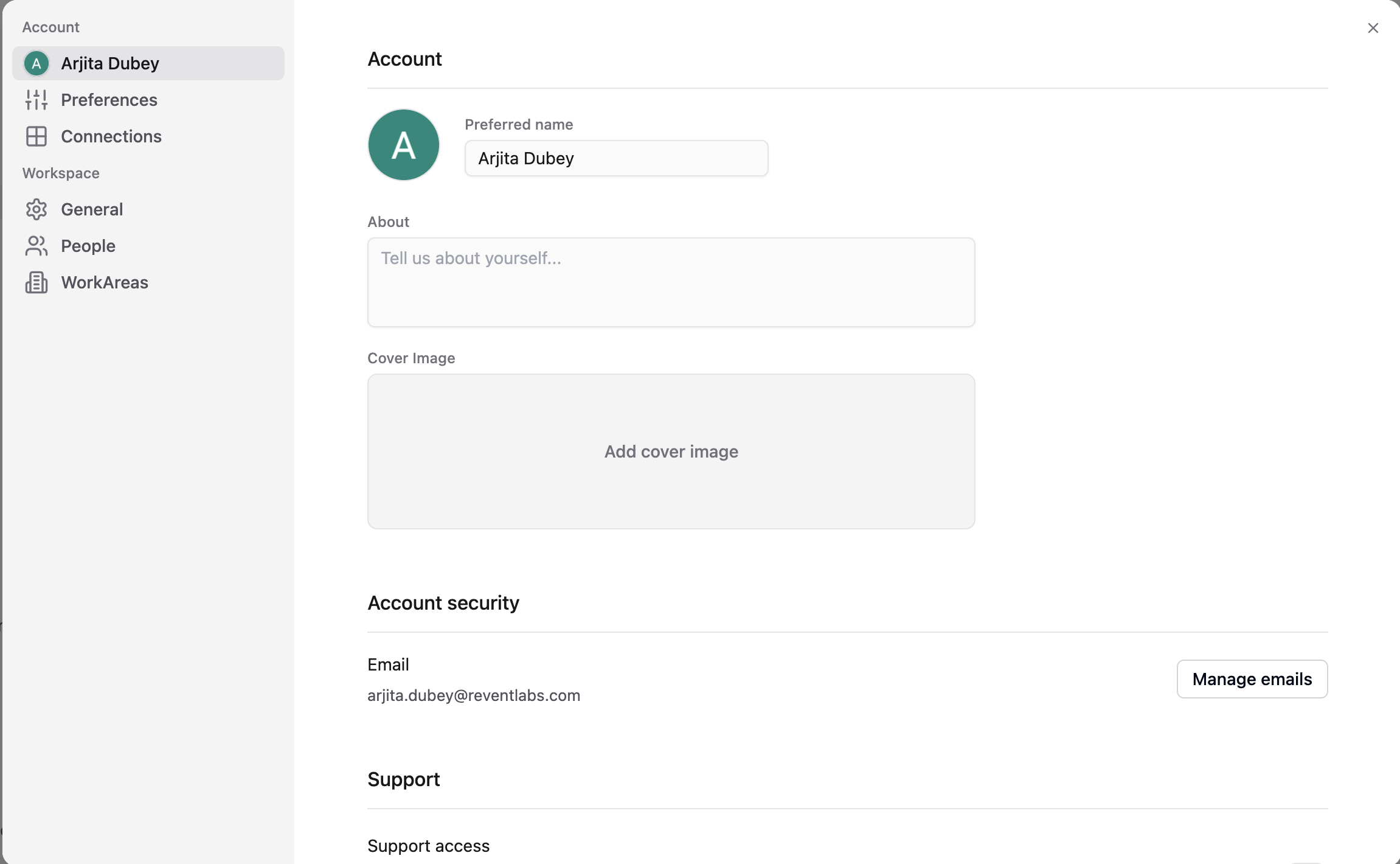
Change Your Profile Photo
Changing your profile photo is only available on the desktop and web versions of Closot. This action cannot be performed from the mobile app.
- Click Settings in your sidebar → select your name
- Click on your current photo or on the initials placeholder above the Add photo label
- Select an image file from your device
- Click Open
Your new photo will be applied immediately and displayed everywhere your account appears in the workspace — in comments, @-mentions, the page header avatar bar, and the People Directory.
Change Your Name
Your preferred name is the display name teammates see throughout Closot. Updating it here changes how you appear in @-mentions, comments, person properties, and the People Directory.
- Click Settings in your sidebar → select your name
- Locate the Preferred name field
- Type your updated name and confirm