Style & Customize Your Page
Closot gives you full control over how your pages look and feel — match your brand, your team's aesthetic, or just your own personal style 🎨
Text Styling
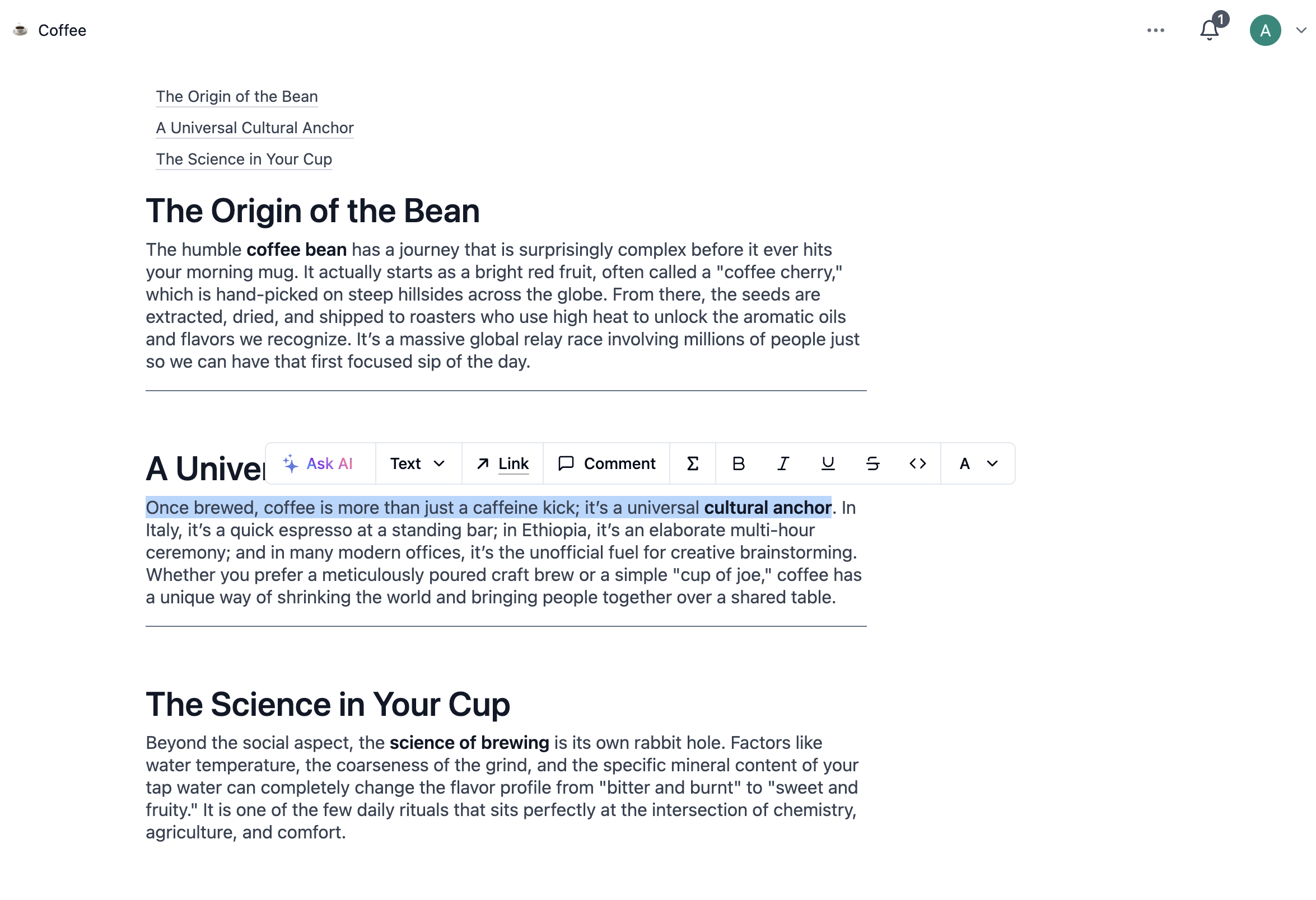
Highlight any text to access the formatting toolbar. Standard formatting options are all here:
| Shortcut | Effect |
|---|---|
Cmd/Ctrl + B | Bold |
Cmd/Ctrl + I | Italic |
Cmd/Ctrl + U | Underline |
Cmd/Ctrl + Shift + S | |
Cmd/Ctrl + E | Inline code |
Cmd/Ctrl + Shift + H | AI highlight |
Cmd/Ctrl + Shift + M | Add comment to selected text |
@ | Mention a person or page inline |
Markdown
Closot supports Markdown on desktop, web, and mobile.
While typing:
| Syntax | Result |
|---|---|
**text** | Bold |
*text* | Italic |
`text` | Inline code |
~~text~~ | |
==text== | AI highlight |
At the start of a line:
| Syntax | Block type |
|---|---|
* or - | Bulleted list |
[] | To-do checkbox |
1. | Numbered list |
# | Heading 1 |
## | Heading 2 |
### | Heading 3 |
> | Quote |
``` | Code block |
--- | Divider |
Colors
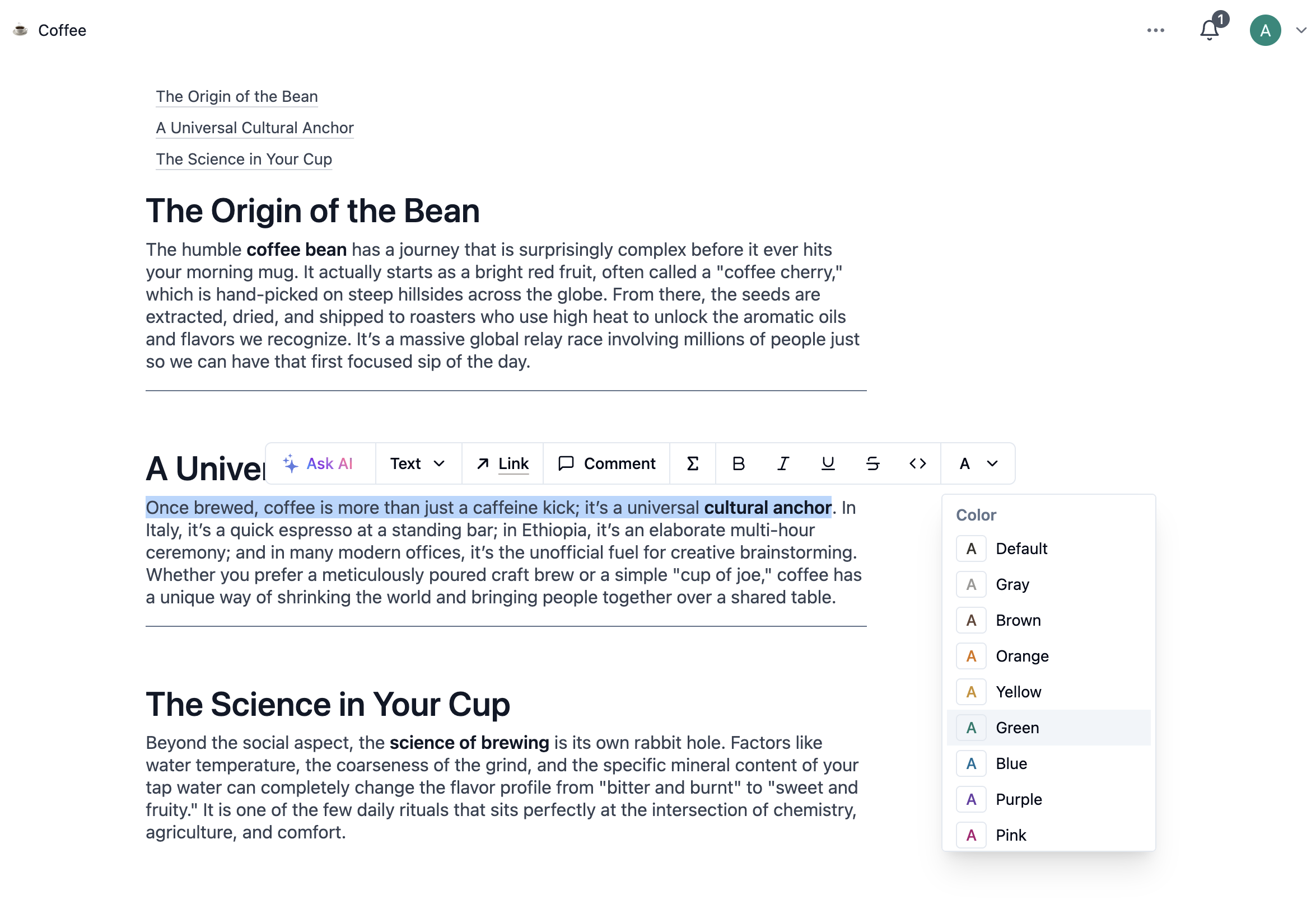
Apply Color to Text or a Block
- Highlight text → click the A dropdown in the toolbar → choose a text or highlight color
- Type
/+ a color name (e.g.,/red) to create an entire colored text block - Use
Cmd/Ctrl+/+ color name +Enteras a keyboard-first alternative
Database Pages
- Click
•••→ Customize layout - Click the Heading module → toggle Show backlinks
- Click the settings button next to the database name
- Set inline comment display: Default (visible) or Minimal (count only)
- Set page discussions: Expanded (all showing) or Off (hidden)
- Click Apply to all pages
Callouts
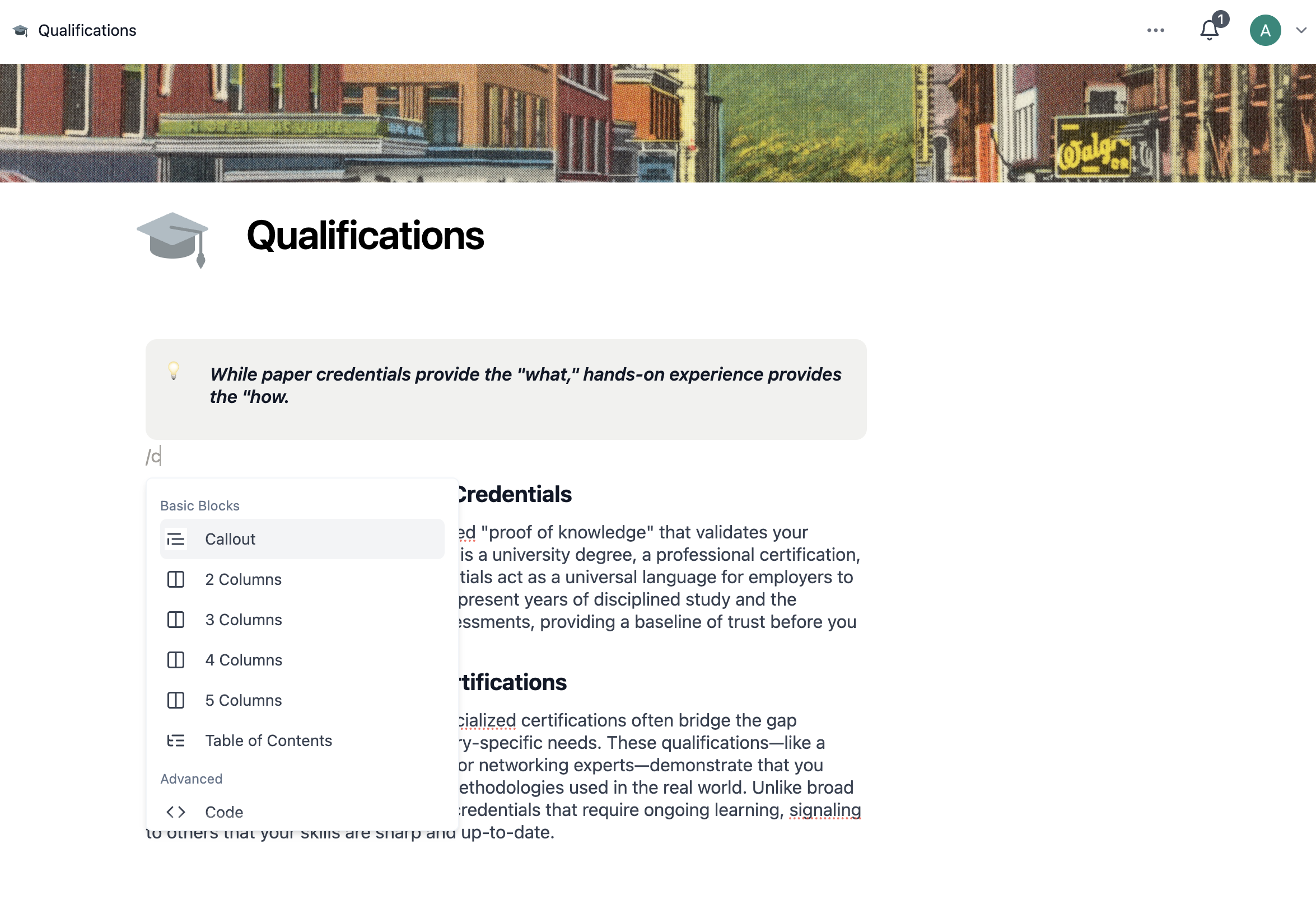
Callouts are boxed highlight blocks — perfect for tips, warnings, and important notes.
Add a Callout
- Hover a block → click
+→ select Callout - Or type
/calloutand pressEnter
Move the callout anywhere using its ⋮⋮ handle — including into columns.
Style Your Callout
Callouts can hold any block type inside them (bullets, headings, etc.). Headings inside callouts will appear in the page's table of contents.
Customize the icon:
- Click the icon on the left → choose a new emoji, or click Remove to strip it
- Upload a custom image (ideal size: 280 × 280 px)
- Paste an image URL
- Click the 🔀 shuffle button to pick a random icon
Customize the color:
- Click
⋮⋮on hover → Color → select a background color
The Default callout color is white with a light gray outline. Choosing a non-black text color will also apply a white background with light gray outline.
Page Icons and Emojis
Every Closot page can have an icon — it appears in the top left of the page and in the sidebar.
Add or Change an Icon
- Hover near the top of your page → click Add icon (or click an existing icon)
- Choose from:
- 🔀 Random — cycles through emojis randomly
- Emoji tab — browse the full emoji library
- Icon tab — choose from Closot's icon set
- Upload tab — upload your own image (ideal: 280 × 280 px)
- Check Add to workspace Emoji library to save a custom emoji for workspace-wide use
Remove an Icon
Click the icon → select Remove.
System emoji picker shortcuts:
- Mac:
Ctrl+Cmd+Space - Windows:
Windows key+.orWindows key+;
Custom Emojis
Alongside the standard emoji set, your workspace can maintain its own library of uploaded images — team logos, project marks, or anything else worth recognizing at a glance. Search for them by name in any emoji picker, exactly like built-in emoji.
To upload and manage them, see Custom Emoji.
Cover Art
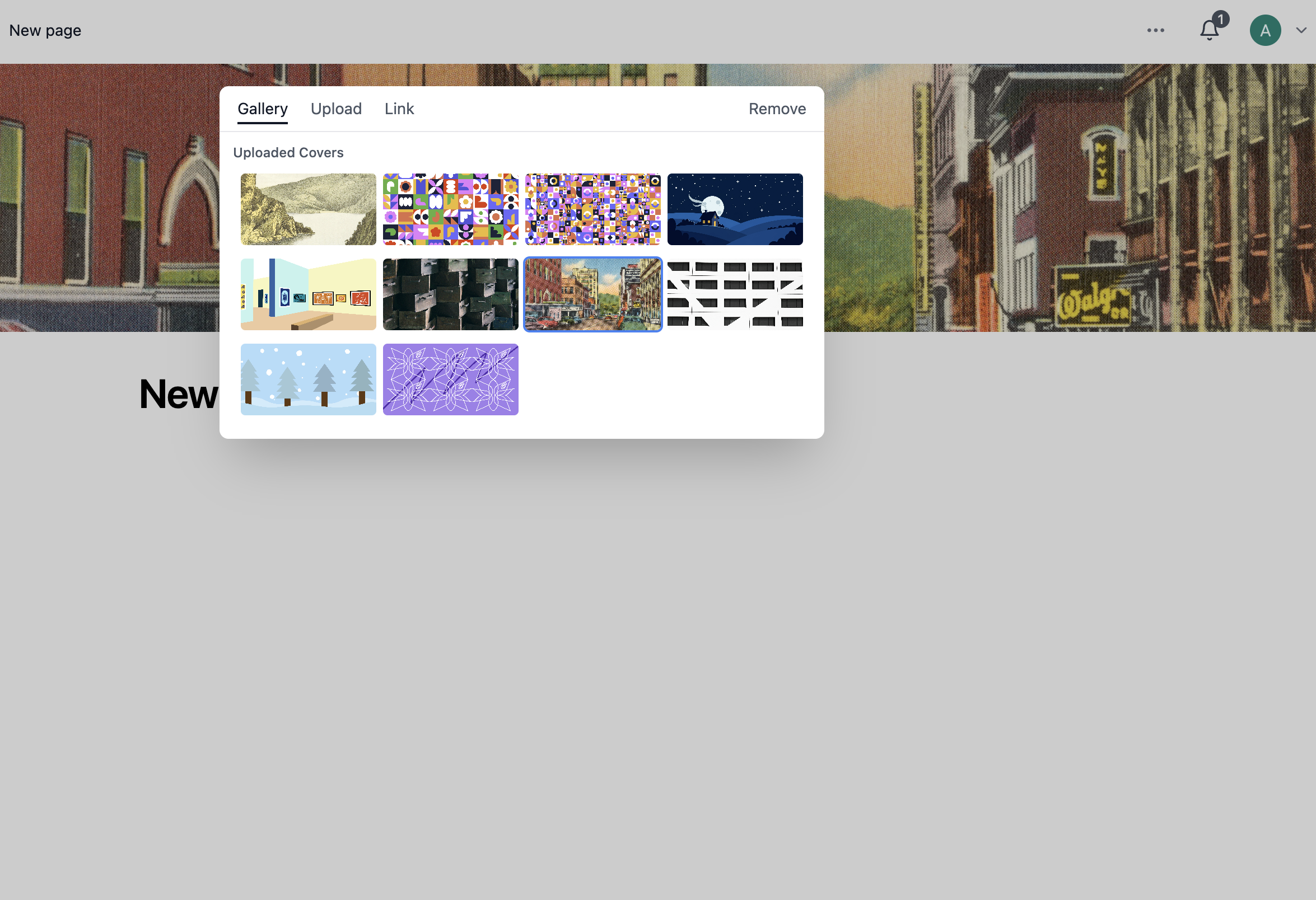
Cover images appear as a full-width banner at the top of every page, including databases.
Add or Change a Cover
- Hover near the top of the page → click Add cover
- To replace an existing one: hover over the cover → click Change cover
Sources:
- Browse Closot's curated image gallery
- Click Upload to use an image from your computer
- Click Link to use a URL from the web
- Search Unsplash for over a million free stock photos
Cover images are dynamic and adapt to your window width — there's no one-size-fits-all dimension. For sharpest results, use images at least 1,500 pixels wide.