Intro to Writing & Editing
Closot works just like a word processor — familiar enough to pick up immediately, but far more powerful under the hood. You can bring in almost any type of content, move it around freely, and reshape it however you need.
Editing Tools
Three primary tools power every page you build:
1. Plus Icon (+)
Appears in the left margin when you hover over a new line. Click it to open a menu of every content type available for that position.
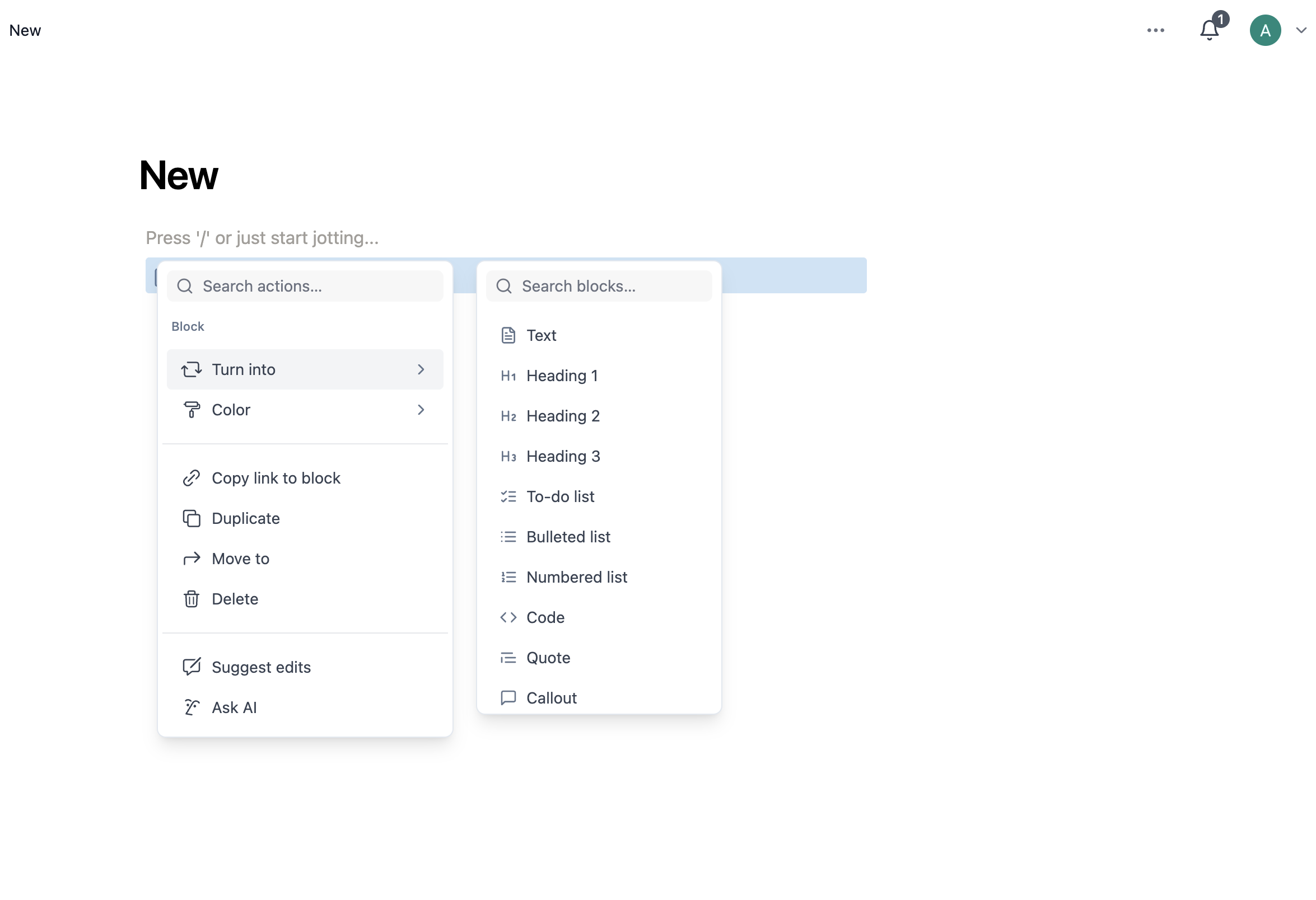
2. Block Handle (⋮⋮)
Visible in the left margin on hover. It does two things:
- Click and drag — move the block to a new position
- Click — open the block action menu with options:
| Option | What It Does |
|---|---|
| Turn into | Convert the block to a different type, or make it a page |
| Color | Change text color or background (where supported) |
| Copy link to block | Generate an anchor link directly to this block |
| Duplicate | Create an exact copy of the block |
| Move to | Send the block to a different page |
| Delete | Remove the block |
| Suggest edits | Submit an edit suggestion |
| Ask AI | Trigger Closot AI on this block |
3. Slash Menu (/)
The fastest way to add content. Type / followed by the name of the block you want:
/bullet→ bullet list/h1→ heading 1/callout→ callout box/list→ an inline database/history→ open version history
The menu filters as you type and groups results by category — Basic Blocks, Advanced, Media, Database, and Options. If nothing matches what you've typed, the menu shows No results, which is a quick way to check whether a block exists.
Types of Content
Basic Blocks
| Block | Description | Shortcut |
|---|---|---|
| Text | Plain paragraph text | — |
| Page | Creates a nestable subpage | — |
| To-do List | Checkbox items | [] |
| Heading 1 | Large heading | # |
| Heading 2 | Medium heading | ## |
| Heading 3 | Small heading | ### |
| Bullet List | Bullet points | - or * |
| Numbered List | Auto-numbered items | 1. |
| Quote | Emphasized quote block | > |
| Callout | Boxed text with an emoji icon | — |
| 2–5 Columns | Side-by-side column layouts | — |
| Table of Contents | Auto-generated list of the page's headings | — |
| Divider | A horizontal rule between sections | --- |
| Button | Runs a set of actions when clicked (Buttons) | — |
Columns and the table of contents are covered in more depth in Format Your Page.
Database Views
Databases are inserted as blocks and can be displayed in any of these layouts:
- List — the default; a scrollable stack where each item opens as a page
- Board — Kanban-style cards grouped by a property
- Calendar — items placed on dates
- Timeline — Gantt-style bars across a time axis
- Chart — bar, line, or donut visualizations
- Gallery — a visual card grid
Two further database blocks stand on their own rather than acting as layouts of an existing database:
- Form — collects responses and stores them as items (Forms)
- Dashboard — arranges several database widgets on one canvas (Dashboards View)
Media
- Image — upload an image or generate one from a URL
- Embed — display content from an external service inline
- Bookmark — a clickable URL preview showing the page's title and icon
- Youtube — embed a video by pasting its link
- Twitter — embed a post by pasting its link
Advanced Blocks
- Code — a formatted code block with syntax highlighting (Code Blocks)
- History — opens the page's version history, where you can preview and restore earlier snapshots (Page Actions Menu)
Selected text can also be turned into rendered mathematical notation with Convert to math equation in the formatting toolbar — see Math Equations.
Sprint Board
The Sprint Board is your team's mission control for working in short, focused cycles. It helps you pull priority items out of a crowded backlog and turn them into a clear plan for the week — so instead of facing everything at once, you see what's in progress, what's done, and what's coming next.
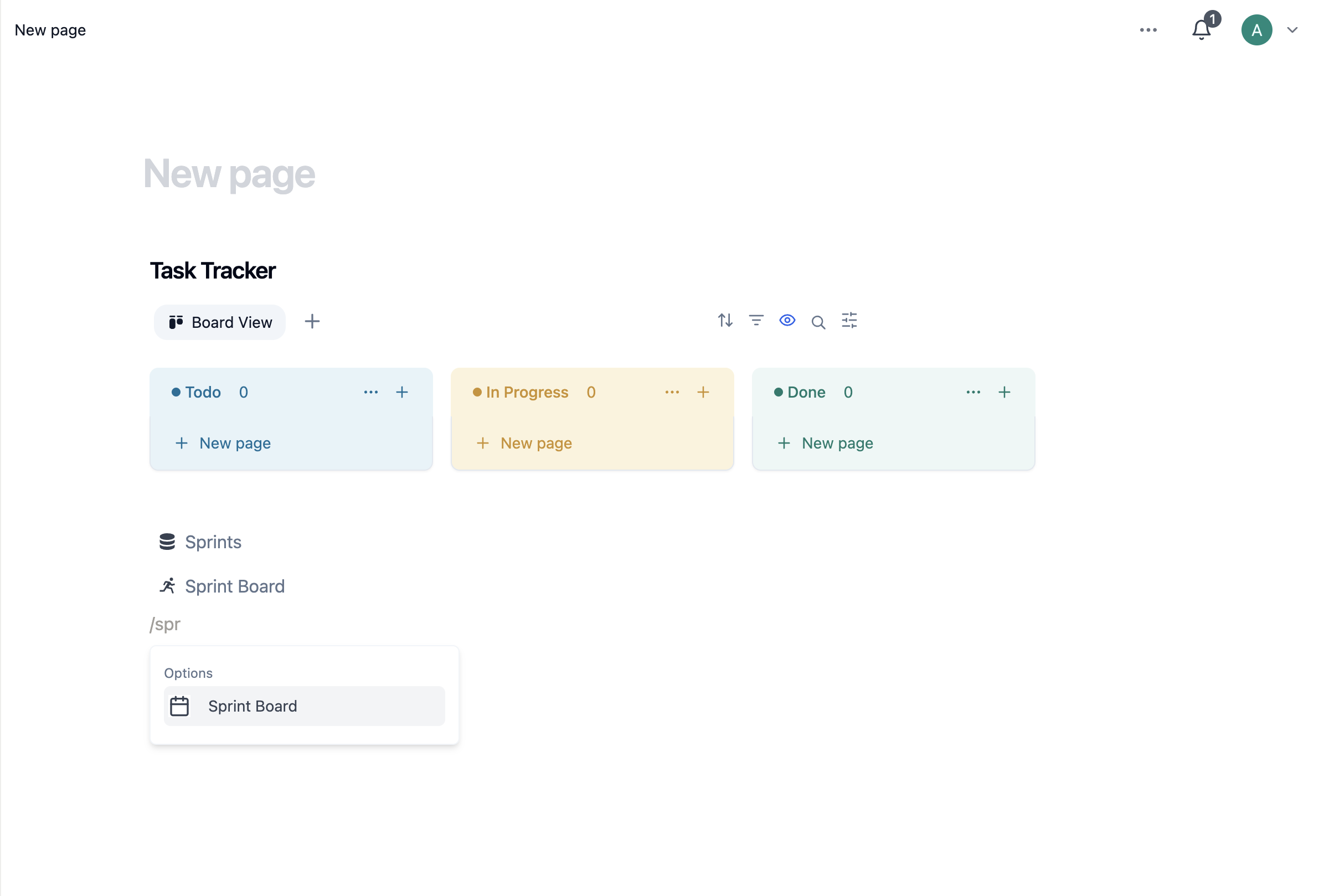
See Sprints for planning and running a cycle.
Inline Options
@+ name — mention a teammate, which sends them a notification@+ page name — link to another page in your workspace@+ date — insert a date
Style Your Writing
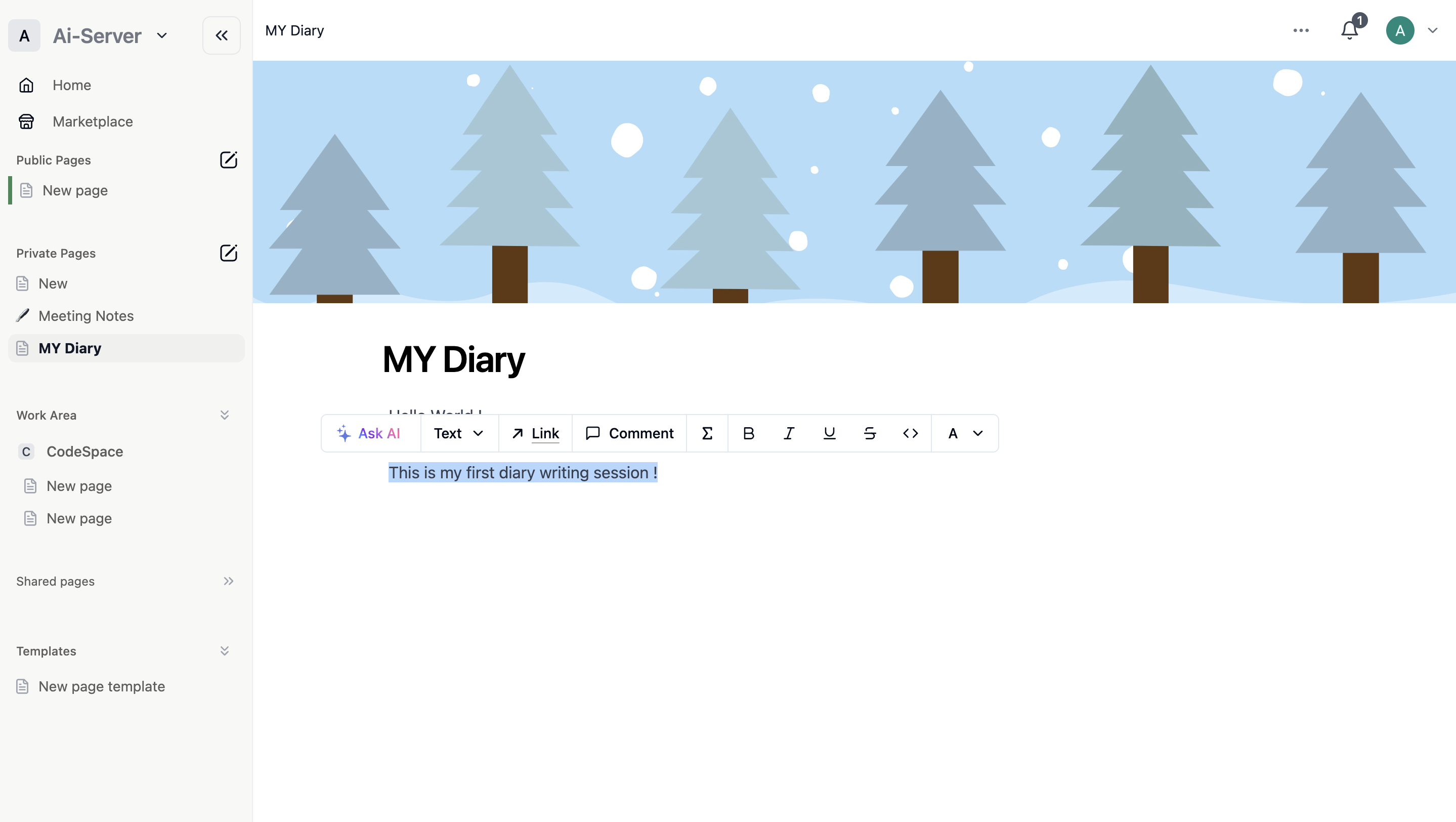
Highlight any text to reveal the formatting toolbar. Options include:
- Bold —
Cmd/Ctrl+B, or surround with** - Italic —
Cmd/Ctrl+I, or surround with* - Inline code —
Cmd/Ctrl+E, or surround with backtick - Strikethrough —
Cmd/Ctrl+Shift+S, or surround with~ - Underline —
Cmd/Ctrl+U - AI highlight —
Cmd/Ctrl+Shift+H, or surround with== - Comment —
Cmd/Ctrl+Shift+M - Mention —
@followed by a name
For the complete list, see Keyboard Shortcuts.
Arrange and Modify Content
Select Content
- Whole blocks: Click and drag the left margin to select one or more blocks
- Partial text: Click and drag within a block; drag across block boundaries to select text spanning multiple blocks
- From edit mode: Press
Escto select the entire current block
Partial text selection across blocks is not available in Firefox.
Drag and Drop
Grab any block using its ⋮⋮ handle and drag it to a new position. Blue guides appear to show you exactly where it will land. Works with rows, table cards, gallery items, and sidebar pages too.
Markdown & Keyboard Shortcuts
Inline Formatting
| Markdown | Result |
|---|---|
**text** | Bold |
*text* | Italic |
`text` | Inline code |
~text~ |
Line-Start Shortcuts
| Type | Result |
|---|---|
* or - | Bulleted list |
[] | To-do checkbox |
1. | Numbered list |
# | Heading 1 |
## | Heading 2 |
### | Heading 3 |
> | Quote |
``` | Code block |
--- | Divider |
Page-Level Text Options
Beyond inline formatting, two settings apply to the whole page from the ••• menu:
- Typography — switch between Default, Serif, and Mono
- Small text — reduce the text size to fit more on screen
See Page Actions Menu for the complete list.
Collaborative Content
@-Mentions
Type @ followed by a teammate's name anywhere — in text or in comments — to alert them. They'll get a notification in their Inbox.
Comments
- Highlight text and click the 💬 button
- Or press
Cmd/Ctrl+Shift+M
On Mobile
A toolbar appears above your keyboard while editing. Scroll it horizontally to see all options:
+— open the block content menu (replaces slash command)- Double-tap — select text across blocks
- @-tag — mention people or pages
- Comment — leave a comment
- Image — insert a photo
- Delete / Indent / Text color / Highlight / Duplicate — additional block controls
- Copy block link — available via
•••
The top-right ••• menu gives access to typography choices and undo/redo.