Format Your Page
Closot is built to get ideas out of your head and onto the page. Once they're there, you have a full set of tools to organize and structure them exactly the way you think 📐
Columns
Creating Columns
Columns let you place content side by side on the same line. There are two ways to create them.
Insert a column layout directly. Type / and choose the number of columns you want — Closot provides 2 Columns, 3 Columns, 4 Columns, and 5 Columns as ready-made layouts. Five columns is the maximum.
Drag an existing block into place.
- Hover over any block to reveal the
⋮⋮handle in the left margin - Click and drag the block to the right of another block
- Follow the blue vertical guide that appears — drop when it spans the content area
- Repeat to add further columns, up to five across the page width
Columns work on tablet but not on phone. On mobile, content in right-hand columns simply stacks below the left column content.
Removing Columns
- Hover the block in the right column, grab the
⋮⋮handle - Drag it back to the left until the blue guide spans the full page width
- Drop it to remove the column layout
To delete an empty column: click ⋮⋮ on it and select Delete.
Resize columns by hovering over the shared edge between two columns — a gray vertical drag handle appears. Drag it left or right to adjust proportions.
Tabular Content
Closot doesn't have a plain, non-database table block. Whenever you need rows and columns, you use a database — which gives you filtering, sorting, and per-row pages for free.
To add one inline, type /list and press Enter. Then:
| Action | How |
|---|---|
| Add a row | Click New page at the bottom of the database |
| Add a column | Click + to the right of the last property header |
See Intro to Databases for the full picture.
Headings
Adding Headings
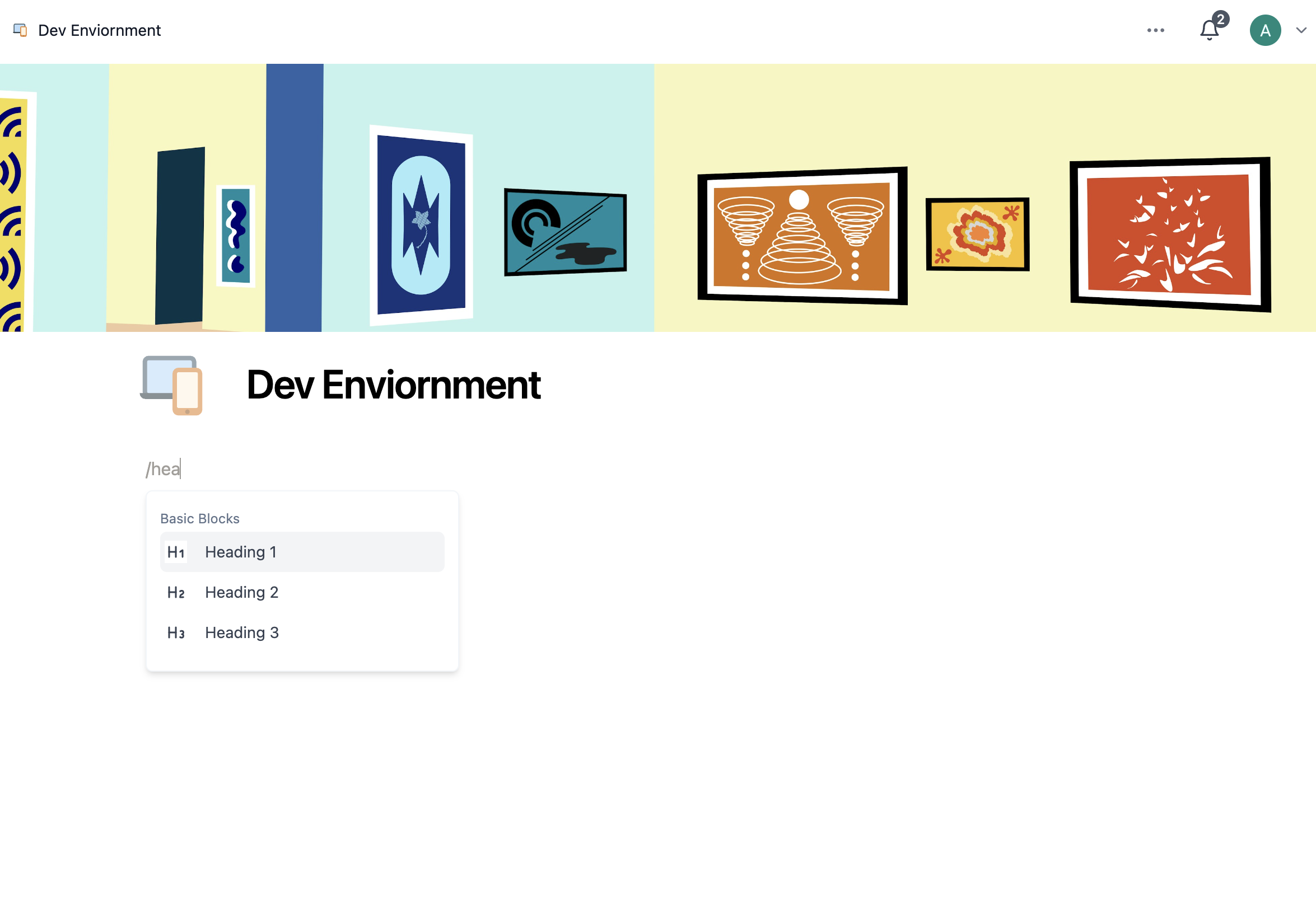 Four ways to create a heading:
- Hover a new line → click
+→ select your heading size - Type
/h1,/h2, or/h3and pressEnter - Use Markdown at the start of a line:
#for H1,##for H2,###for H3, followed by a space - Type your content first, then press
Cmd/Ctrl+/and choose a heading size
Table of Contents
A table of contents makes long pages much easier to navigate, letting readers jump directly to any section.
Table of Contents Block
Insert as a standalone block anywhere on your page:
- Hover a new line → click
+→ select Table of contents - Or type
/tocand pressEnter
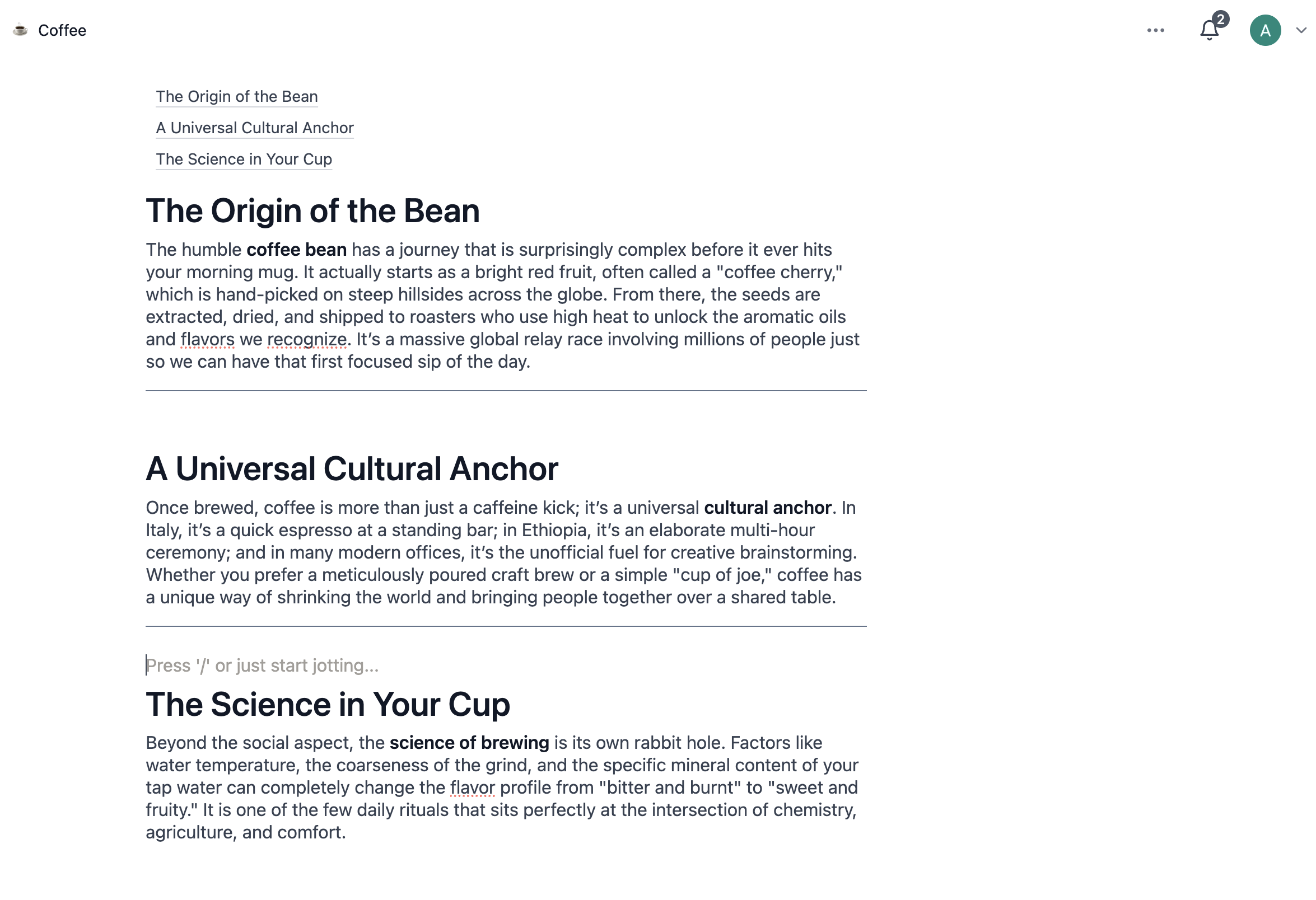
Indented headings won't appear in the table of contents block.
The block stays in sync with your headings — as you add, rename, or remove sections, the entries update automatically.
Dividers
A divider draws a horizontal line across the page, giving readers a clean break between sections.
Type --- (three hyphens) at the start of a line and Closot converts it into a divider as soon as you finish typing.
Dividers are created through Markdown rather than the / menu — searching the block menu for "divider" returns no results.
Once inserted, a divider behaves like any other block: grab its ⋮⋮ handle to move it, or select it and press Backspace to remove it. See Keyboard Shortcuts for the full set of Markdown shortcuts.