Delete & Restore Content
Remove content you no longer need — and bring it back when you change your mind.
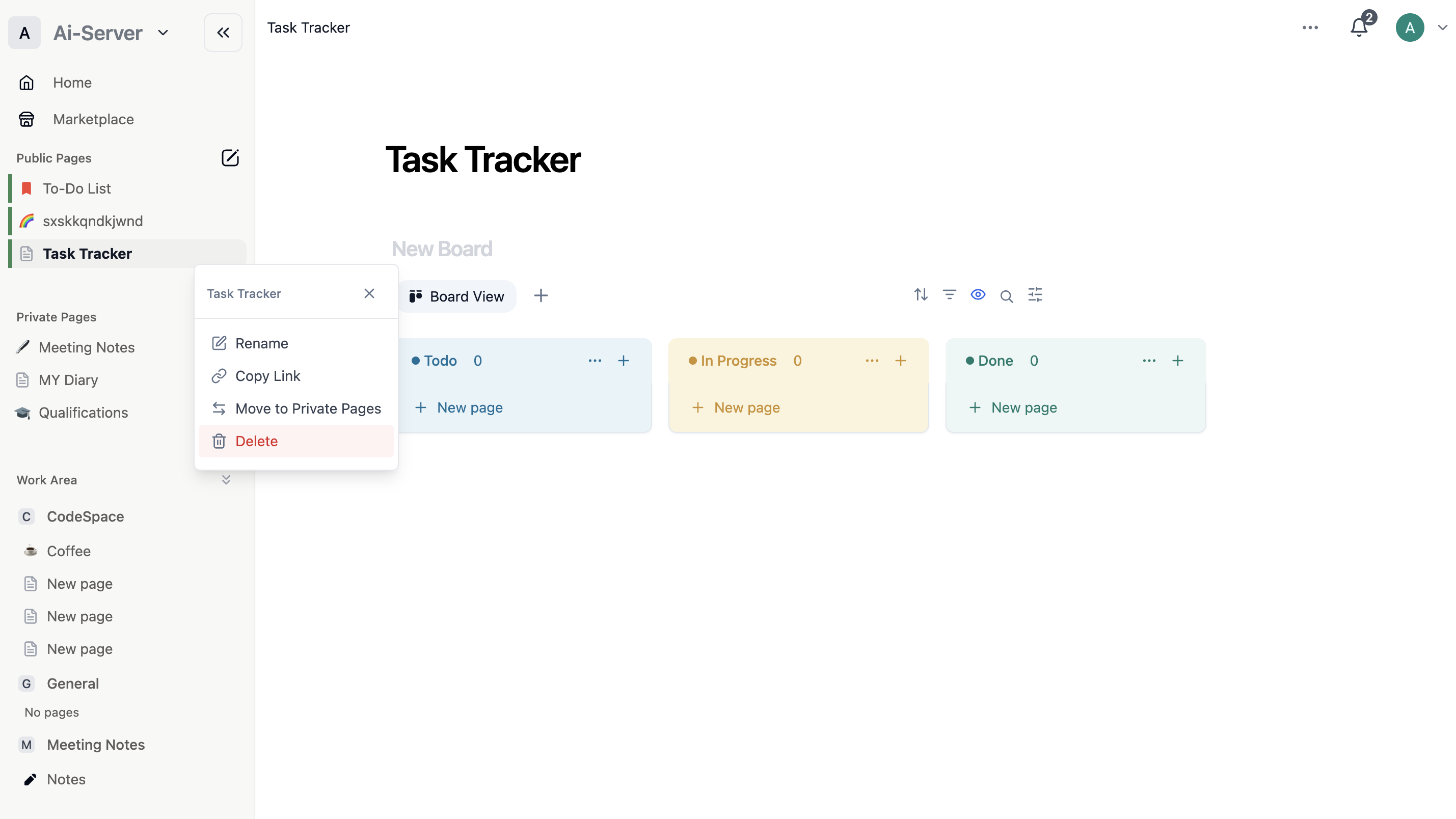
Delete Blocks
Several ways to remove a block:
- Hover the block → click
⋮⋮(left margin) → select Delete - For images, embeds, and sub-pages: click
•••(top left of the block) → Delete - Right-click the block → Delete
- Select the block and press the
DeleteorBackspacekey - On mobile: tap
•••in the toolbar → Delete
Delete Pages
| Method | How |
|---|---|
| From the sidebar | Hover the page → ••• → Delete |
| From inside the page | Click ••• at top left → Delete |
| Sub-page in page body | Hover the sub-page block → ⋮⋮ → Delete |
| Keyboard | Select the page and press Backspace or Delete |
Version History
Closot saves a full history of changes to every page, allowing you to review and restore previous versions at any time.
To access version history:
- Click
•••at the top of the page → View History - On mobile: tap
•••→ View History
You can also open it without leaving the keyboard — type /history on the page and select History from the menu.
Each saved snapshot is listed with its date and time. Select one to preview the page as it existed then, and click Restore to bring it back.
Restore past versions of a page
-
To recover only specific content blocks from a previous version, click on a certain version of a page, copy those blocks, and paste them into your current page.
-
You can also restore a past version of a page so it becomes your current one. Open the desired version and click Restore.
-
Even if you or someone on your team restores a past version, you can always go back to the page as it was during any point in the past 30 days. Just open Version history again, choose the version you want to return to, and restore it.
-
If you’re restoring a database, all of its pages and their properties will be restored. However, any contents of the database pages, like text inside of the pages, won’t be restored. To restore database page contents, you’ll have to restore an earlier version of every individual page.
-
If you’re restoring a page with an inline database (in other words, a database inside of a page), you can choose to restore or not restore the database’s pages and properties.
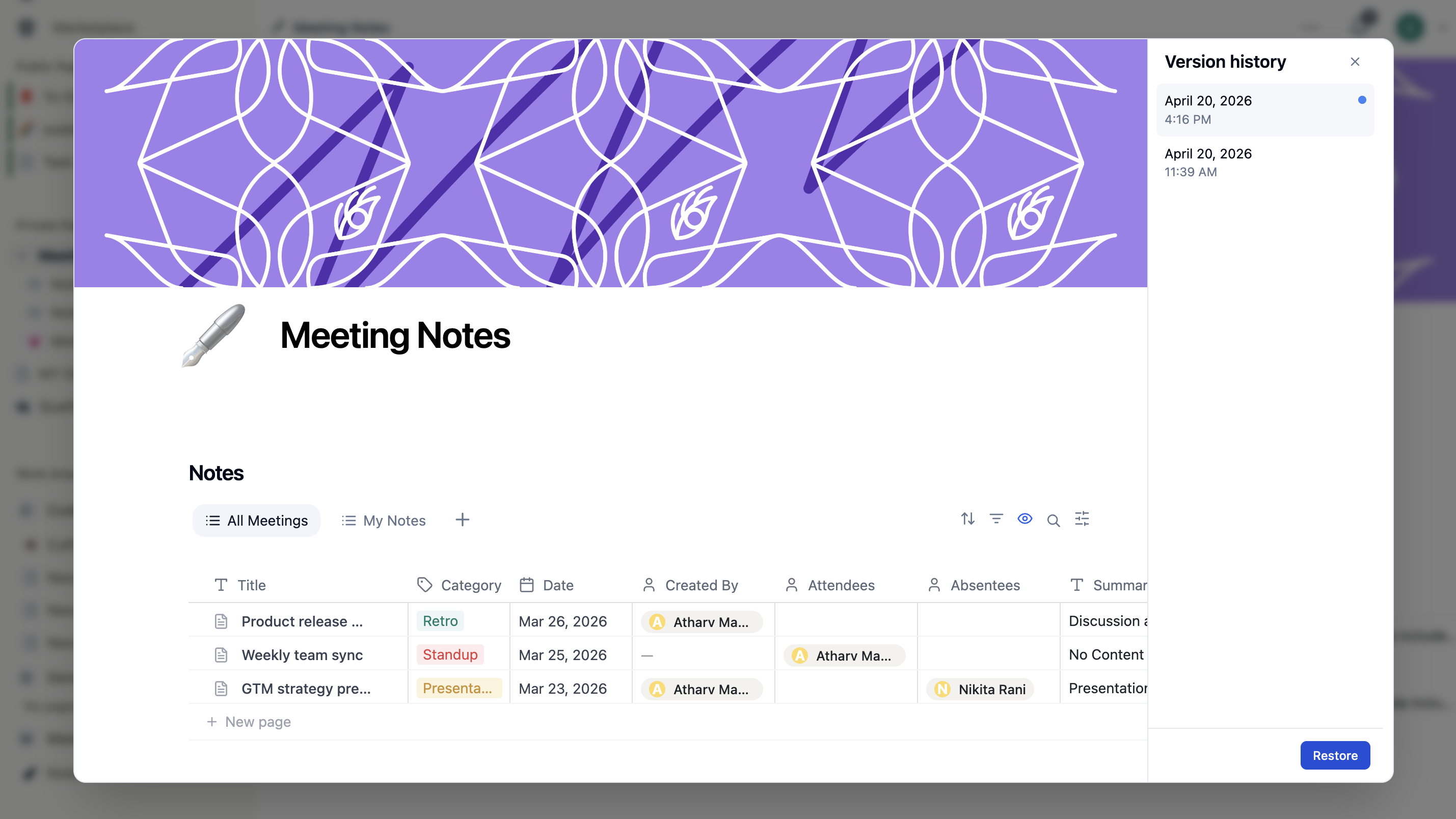
Restoring a database restores page content and properties only — it doesn't restore deleted rows as separate pages.
Delete Database Properties
- Click Settings in the database header
- Select Edit Properties
- Click the property you want to remove
- Click Delete property
Deleted properties aren't gone forever — they move to a Deleted Properties section.
To manage deleted properties:
- Go to Settings → Edit Properties
- Scroll to Deleted Properties
- Click the restore arrow to bring a property back
- Click the trash icon to permanently remove it