Finding Templates in the Gallery
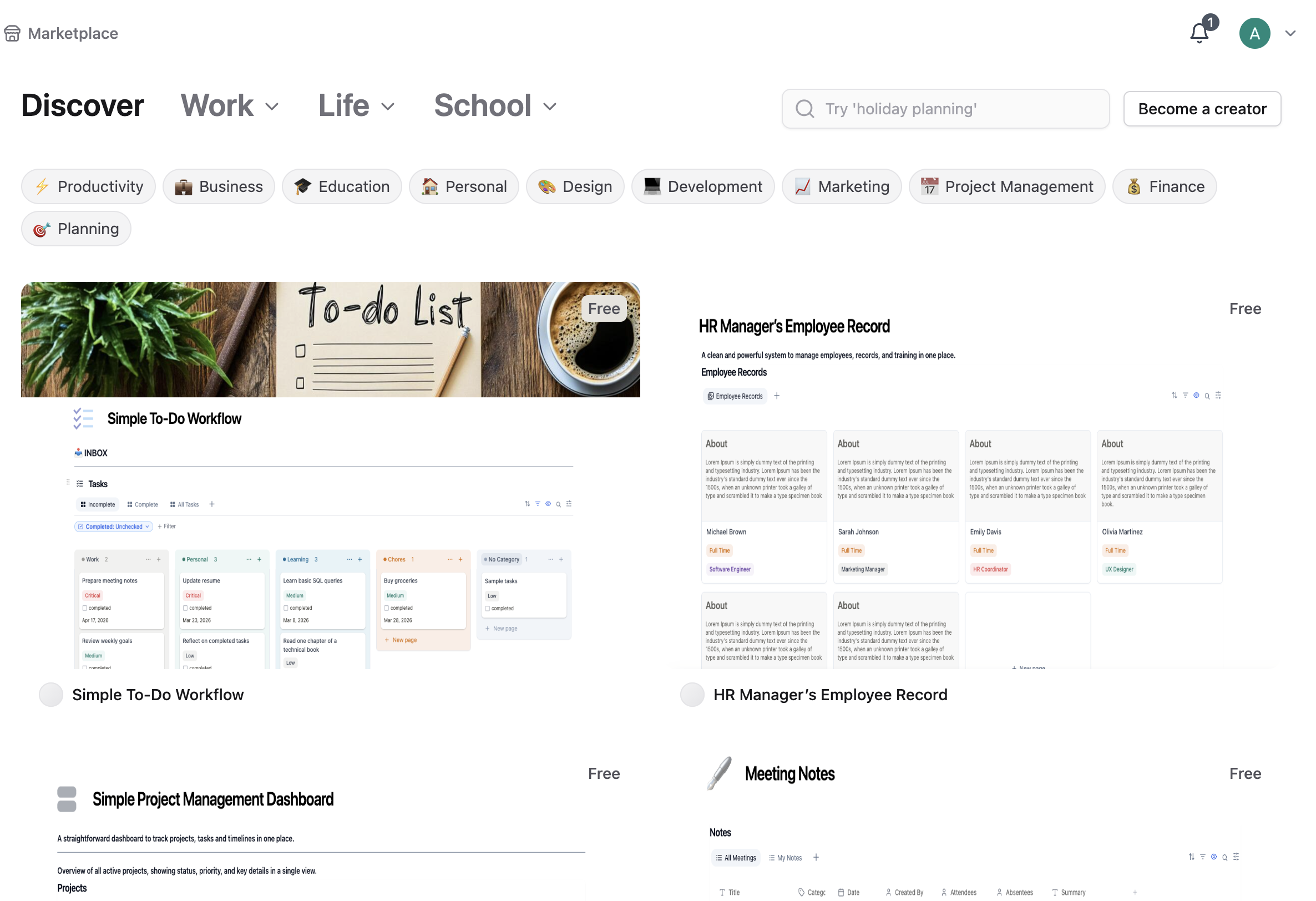
Whatever you're trying to build — a product roadmap, a weekly planner, a client tracker — there's a good chance someone has already designed it for you. The Closot Template Gallery is where you discover and add those ready-made setups, saving you the time it takes to build from scratch.
The Template Gallery is the trusted destination for all kinds of workspace templates. You'll find free and paid templates made by verified creators, and you can add them directly to your workspace without leaving Closot.
Find Templates
Open the gallery by clicking Marketplace in your Closot sidebar. You'll land on a Discover page with curated recommendations, or you can search for something specific.
Browse by Category
Templates are organized into three groups, each with its own set of categories:
| Group | Categories |
|---|---|
| Work | Project Management, Business, Marketing, Development, Analytics, CRM, HR, Sales, Operations |
| Life | Personal, Finance, Planning, Tracking, Writing, Content Creation, Social Media |
| School | Education, Research |
A row of quick-access tags sits alongside them — Productivity, Business, Education, Personal, Design, Development, Marketing, Project Management, Finance, and Planning — for jumping straight to a popular area.
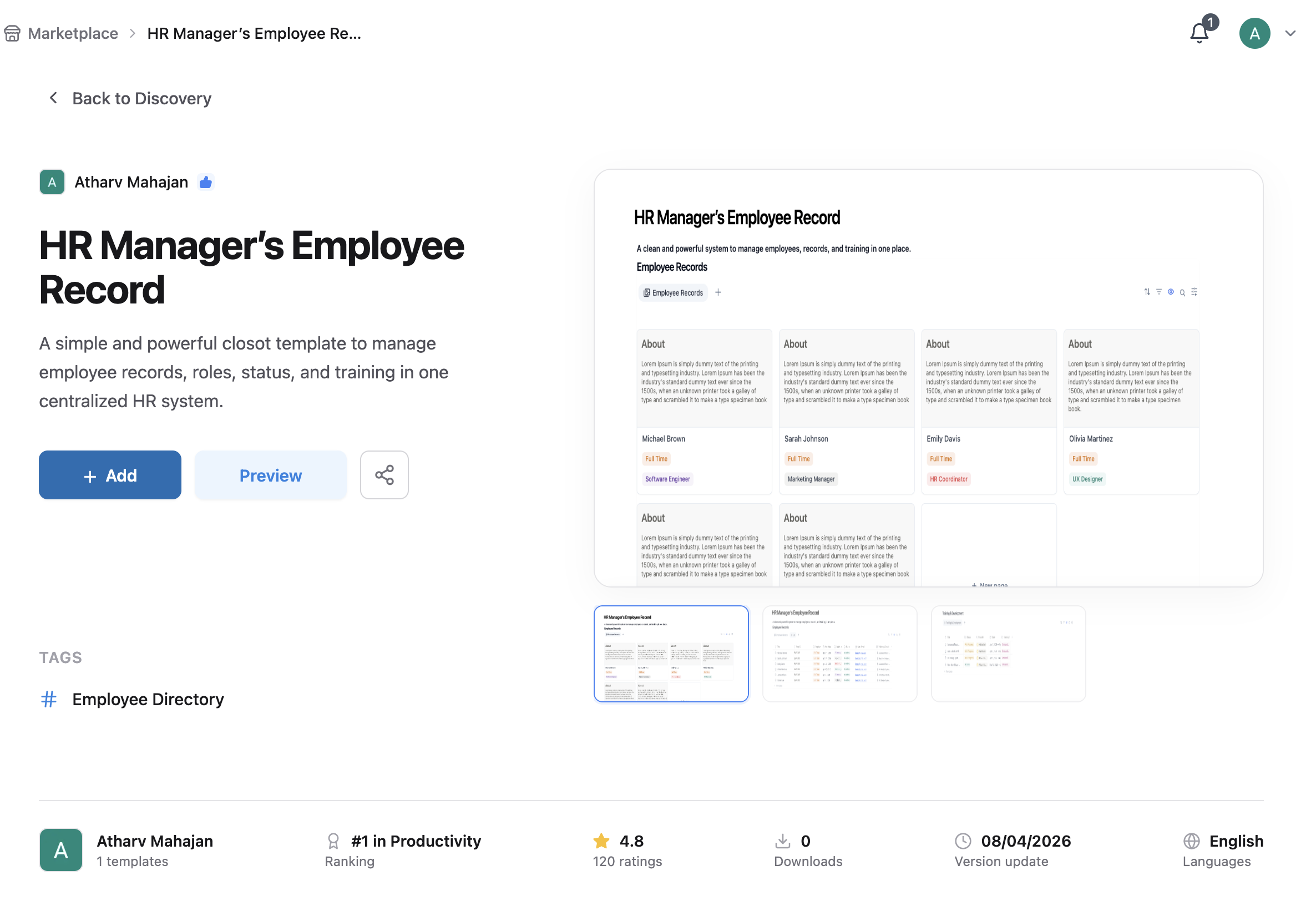
Each template card shows its price at a glance. Click any template to open its full detail page, which includes:
- A description of what the template does and what it's built for
- The creator's name and profile
- User reviews and an overall rating
- When it was last updated
- Which categories it belongs to
Add a Template
You must be signed in and using Closot on desktop or web to add a template. Purchases are processed in U.S. dollars (USD) only, via credit card. Marketplace purchases are not exempt from sales tax.
Once you find one you want:
- click Add at the top of the template page.
Manage Your Templates
To see all templates you've added, go to Templates in the sidebar and click Added at the top of the Gallery. This view lists every template added to your workspace, along with who added it, what was paid, and when it was added.
Only templates added or purchased directly through the Closot Template Gallery appear here. Templates acquired through third-party platforms are not included in this list.
Leave a Review
- Click
•••next to the template. - Select Leave a review.
- Follow the prompts to write your review — keep it relevant to the template, avoid profanity or inappropriate content, and write clearly. Reviews that don't meet these standards may not be published.
Become a Creator
If you've built something other people would benefit from, you can publish it to the Marketplace yourself. Click Become a creator in the Marketplace to start.
Before you publish, read Template Gallery Guidelines & Terms for the content standards and licensing rules your listing has to meet, and Getting Featured for what the editorial team looks for when selecting templates to promote.