Share Your Work
Closot gives you flexible options for distributing your pages — whether that's one specific person, your whole team, or anyone on the internet.
Share with One Person
- Start with a private page in your sidebar
- Click Share in the top-right corner of the page
- Type the person's name or email address
- Use the dropdown to choose their access level (view, comment, or edit)
- Click Invite
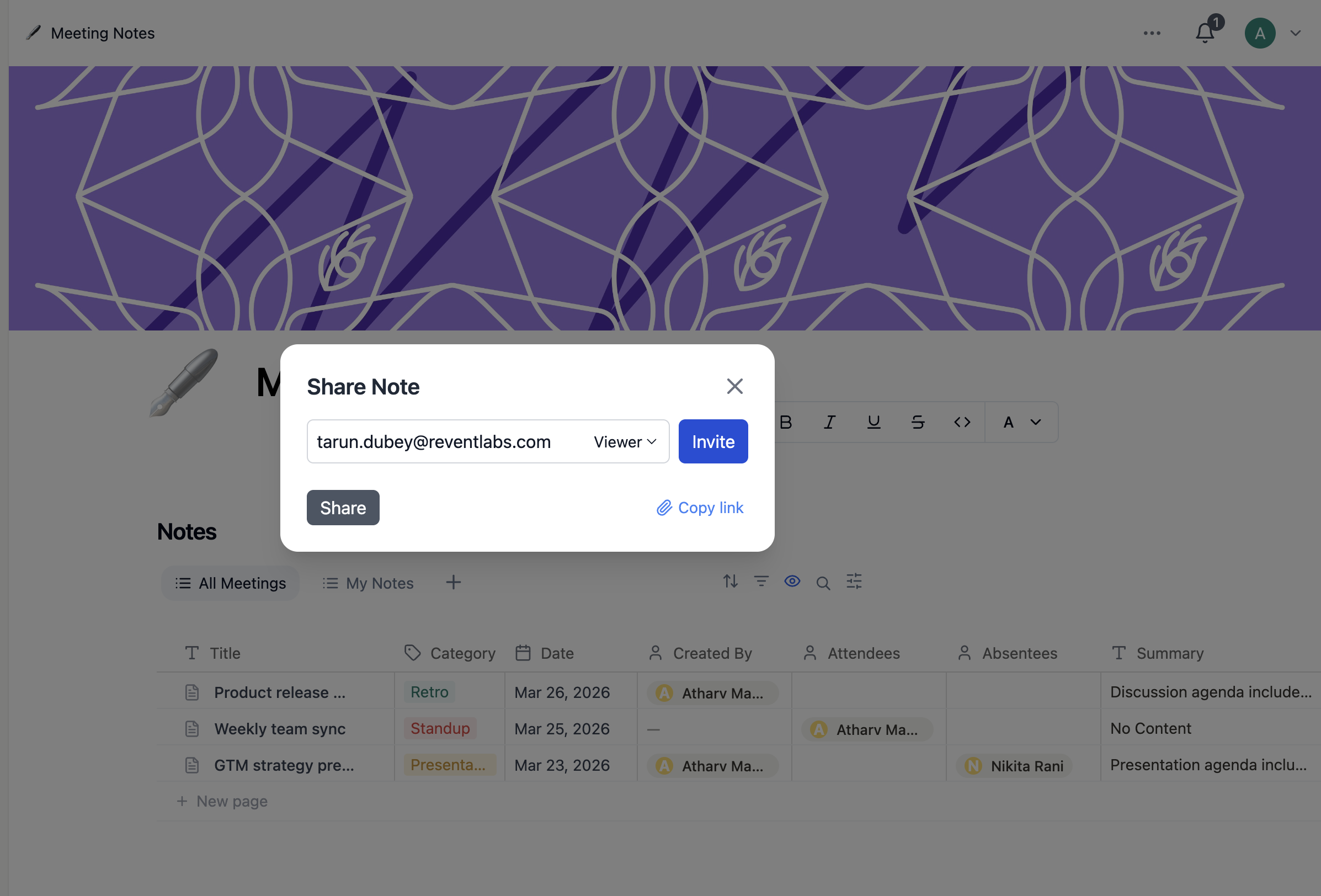
People outside your workspace are added as guests. Workspace members show up with their profile photos, and the page moves from "Private" to "Shared" in your sidebar once someone is invited.
Share with Your Team
There are several ways to get a page in front of your entire team:
- Workspace-wide access: Click Share, then grant access to "Everyone at [workspace name]" — you can set a default permission level like view-only for the whole group
- Default workarea: Pages added to your default workarea are automatically visible to all workspace members
- Drag and drop: Move a private page into your default workarea in the sidebar to share it with everyone instantly
- Copy the link: Every page has a unique URL — paste it into Slack, email, or wherever your team communicates
Share with the Web
To make a page publicly accessible to anyone with the link:
- Click Share at the top of the page
- Open the General access dropdown
- Select Anyone on the web with link
- Choose a permission level: edit, comment, or view-only
- Optionally set a link expiration date
- Click Copy link and share it wherever you like
Visitors need a Closot account to comment or edit — view-only access works without logging in.
Want more than a shareable link? You can publish pages as polished public websites using Closot Sites.
Up next: Collaborate with people — Take teamwork further with real-time editing, comments, and mentions.