Create a Page
Every page in Closot starts as a completely blank canvas — yours to fill with whatever content you need.
Create a Page
There are a few ways to spin up a new page:
- Click the 📝 icon at the top of the left sidebar
- Use the keyboard shortcut:
Cmd+N(Mac) orCtrl+N(Windows/Linux) - On mobile: tap the 📝 icon at the bottom of the screen
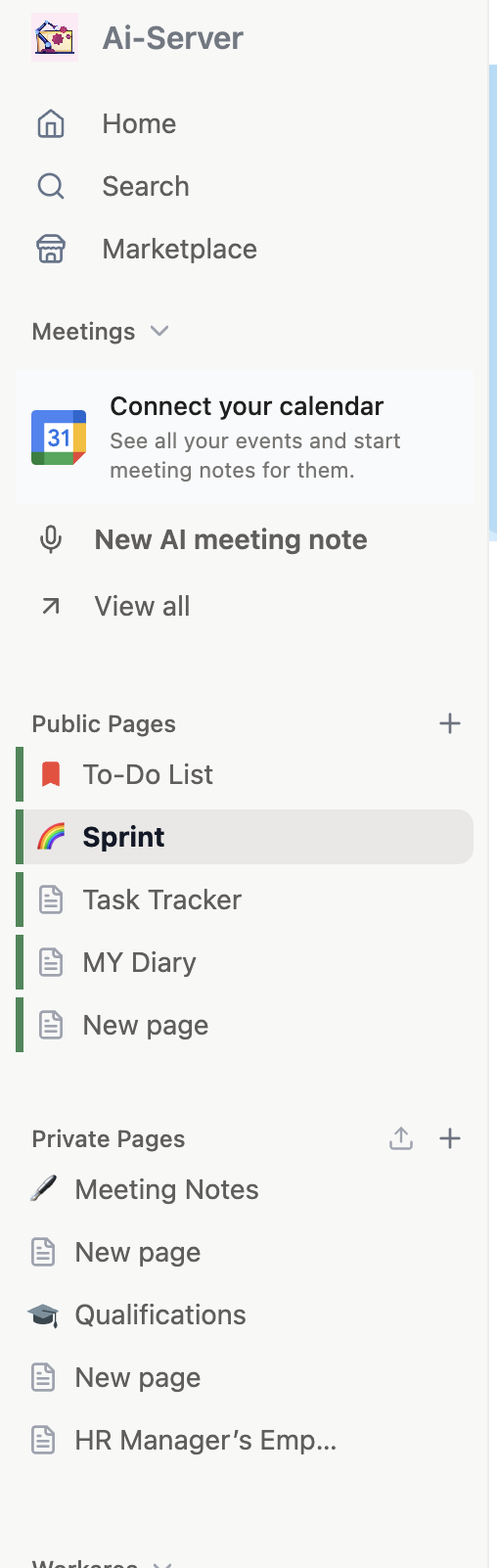
Start Writing
Once a new page is open:
- Click at the top and type a title for your page
- Click below the title and start writing your content
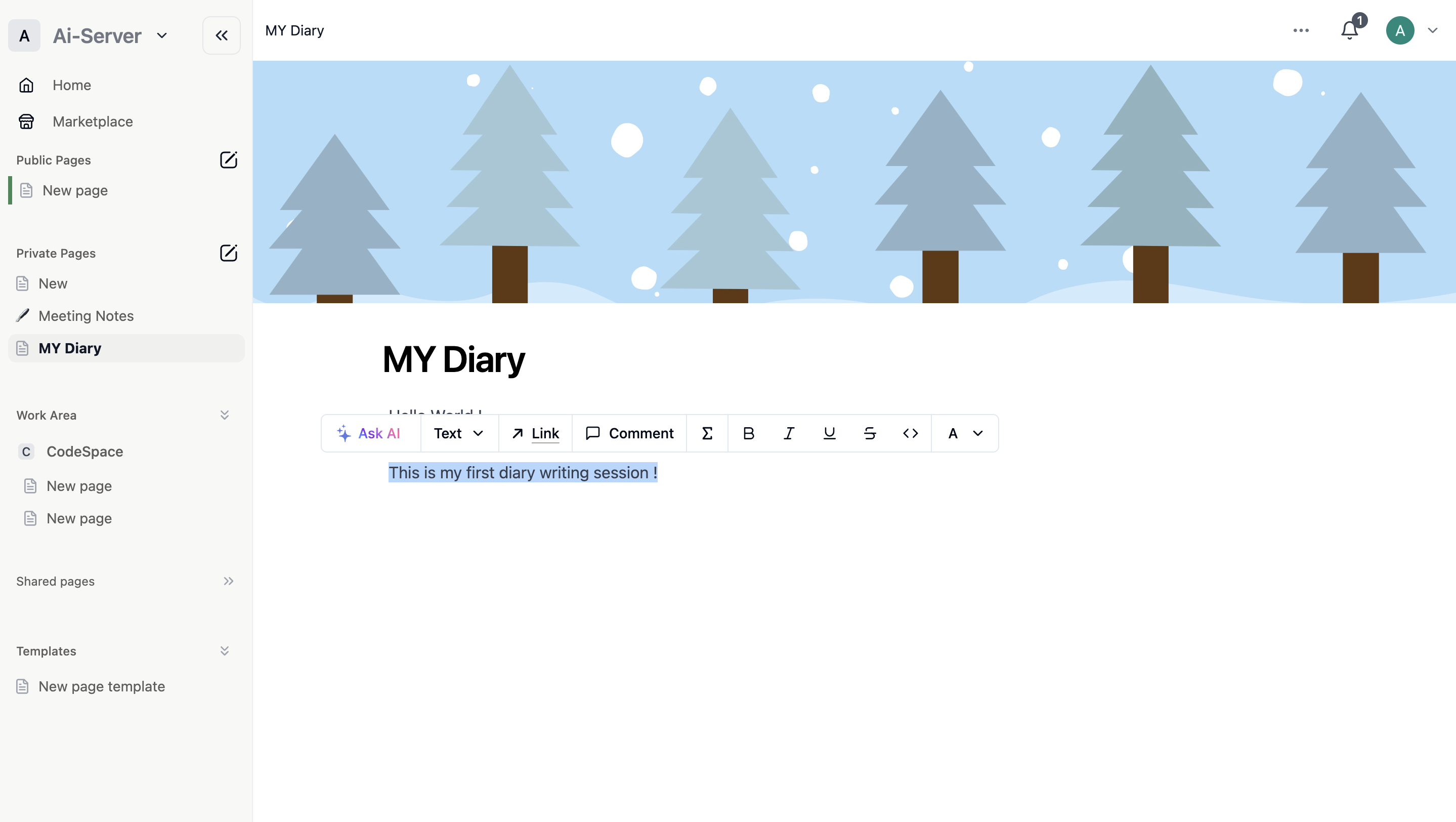
- Highlight any text to reveal the formatting toolbar
The formatting toolbar gives you quick access to:
- Change text style (bold, italic, underline, code, etc.)
- Adjust text or background color
- Add a hyperlink
- Insert a comment
info
On desktop and web, a new empty page shows quick-start options at the bottom — shortcuts to import content, apply a template, create a table, and more.
Try a Slash Command
Slash commands are one of Closot's most useful shortcuts. Type / anywhere on a page to open a menu of every block type available.
- Recently used blocks appear at the top for quick access
- Type after the
/to filter results — for example,/h1inserts a large heading,/todoinserts a checkbox - Scroll through the menu or keep typing to narrow down to exactly what you need
Up next: Create a subpage — Learn how to nest pages inside other pages to keep things organized.