Create a Database
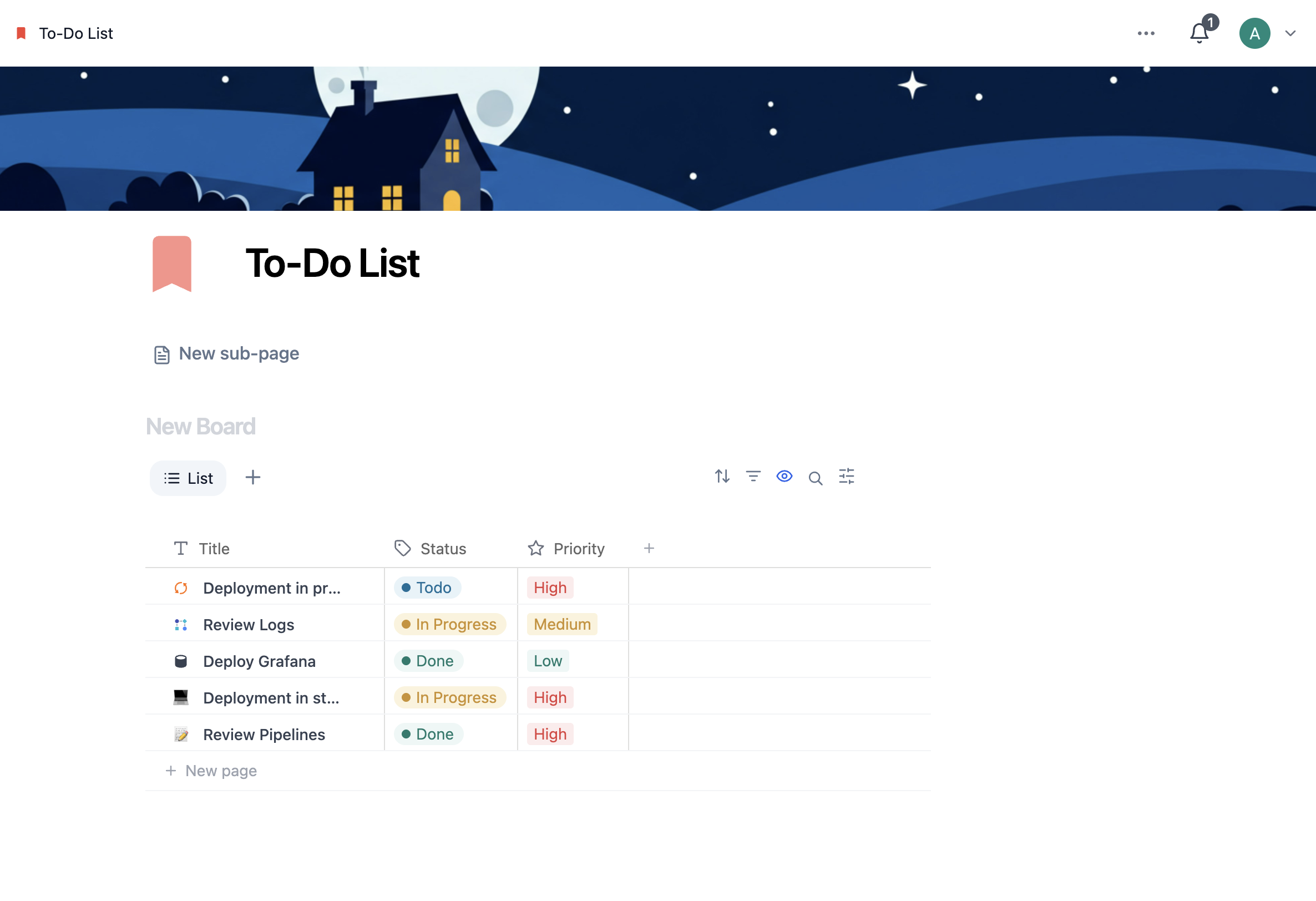
Time to build a database and explore its core capabilities — properties, views, filters, and sorts — hands-on.
Create a New Database
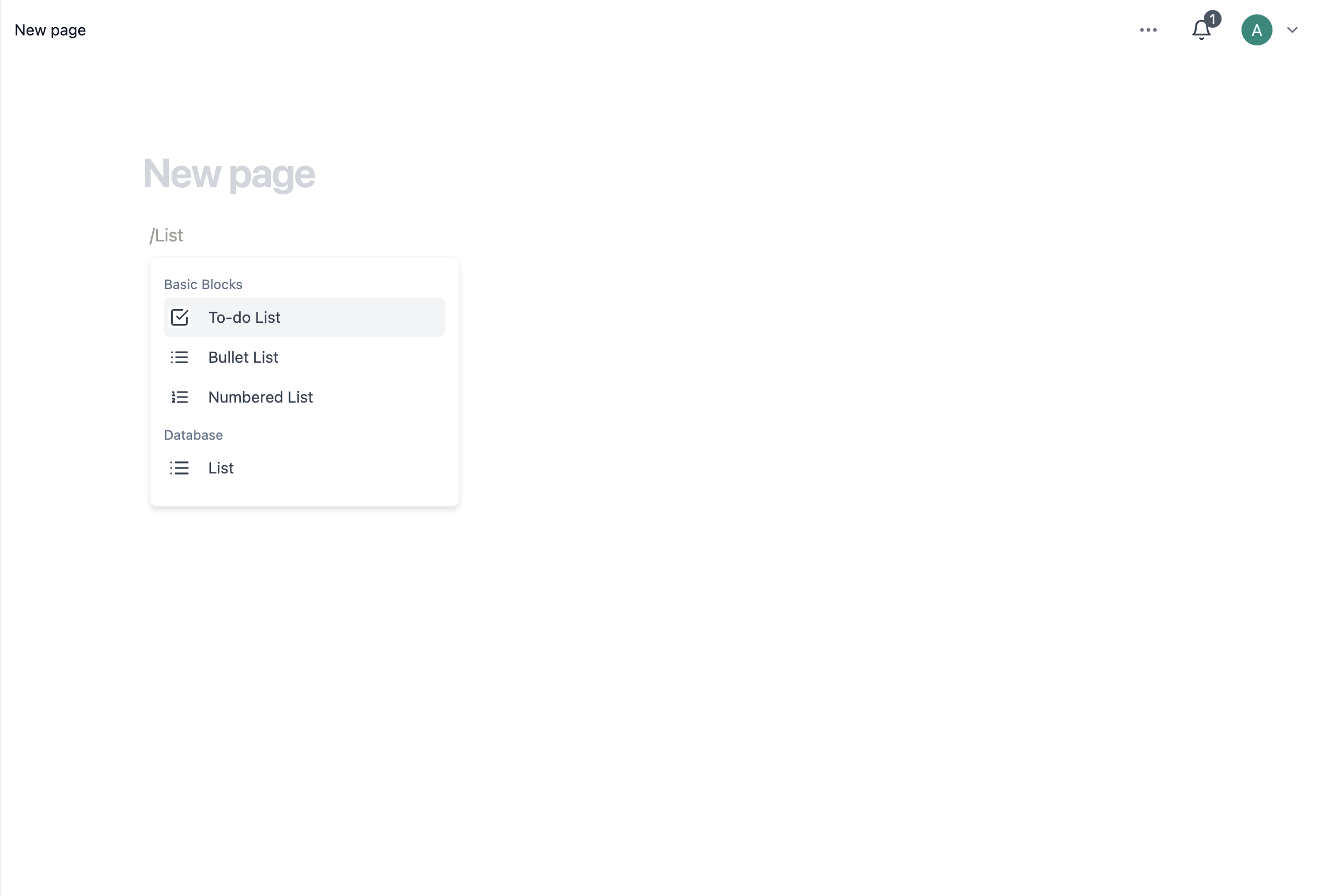
- Open a new page and type
/liston any existing page - The first column holds your page names; every additional column is a property
- To change a property type, click the property name → Edit property → Change type
Create a Database with Closot AI
Closot AI can scaffold a database for you based on a plain-language description.
From a Page
- Create a new page and select
•••→ List, or use/database - Click Build with AI in the menu
- Describe what you need (e.g., "a customer feedback tracker with priority levels, status, and assignee")
- Review the preview and adjust anything you'd like to change
- Click Continue, then choose a visualization format and click Done
From Home
- Switch to Build mode in the Closot AI widget on your Home screen
- Describe the database you want to create
- Review and refine the preview
- Click Continue, choose a visualization, then click Done
AI-generated databases can't edit existing databases and can't create pages, forms, charts, or templates inside the database at creation time. The resulting database is placed as a new page in your workspace — you can move it wherever you like afterward.
Create a Database from a Template
- Create a new page and select Database under "Get started with"
- Browse Suggested templates or explore more from the full list
- Pick a template and click Get started
Add Data to Your Database
Here's a practical example using a task database:
- Click New page to add a task row
- Add a priority property:
- Click Add property, give it a name, and select a property type
- Click the property name → Edit property → add options (e.g., P1, P2, P3)
- Add a due date property:
- Click
+to add a property, name it "Due date," and select the Date type - A date picker will appear whenever you edit that field
- Click
Open a Row as a Page
Every row in a database is also a full page with its own content area.
- Hover over a cell in the Name column and click Open
- Add or edit properties from the page view
- Write content, add blocks, embed files — just like any other Closot page
Create New Database Views
- Click the
+button next to the current view name at the top of your database - Select a view type — for example, Board
- Your rows now display as cards grouped by a property like Status
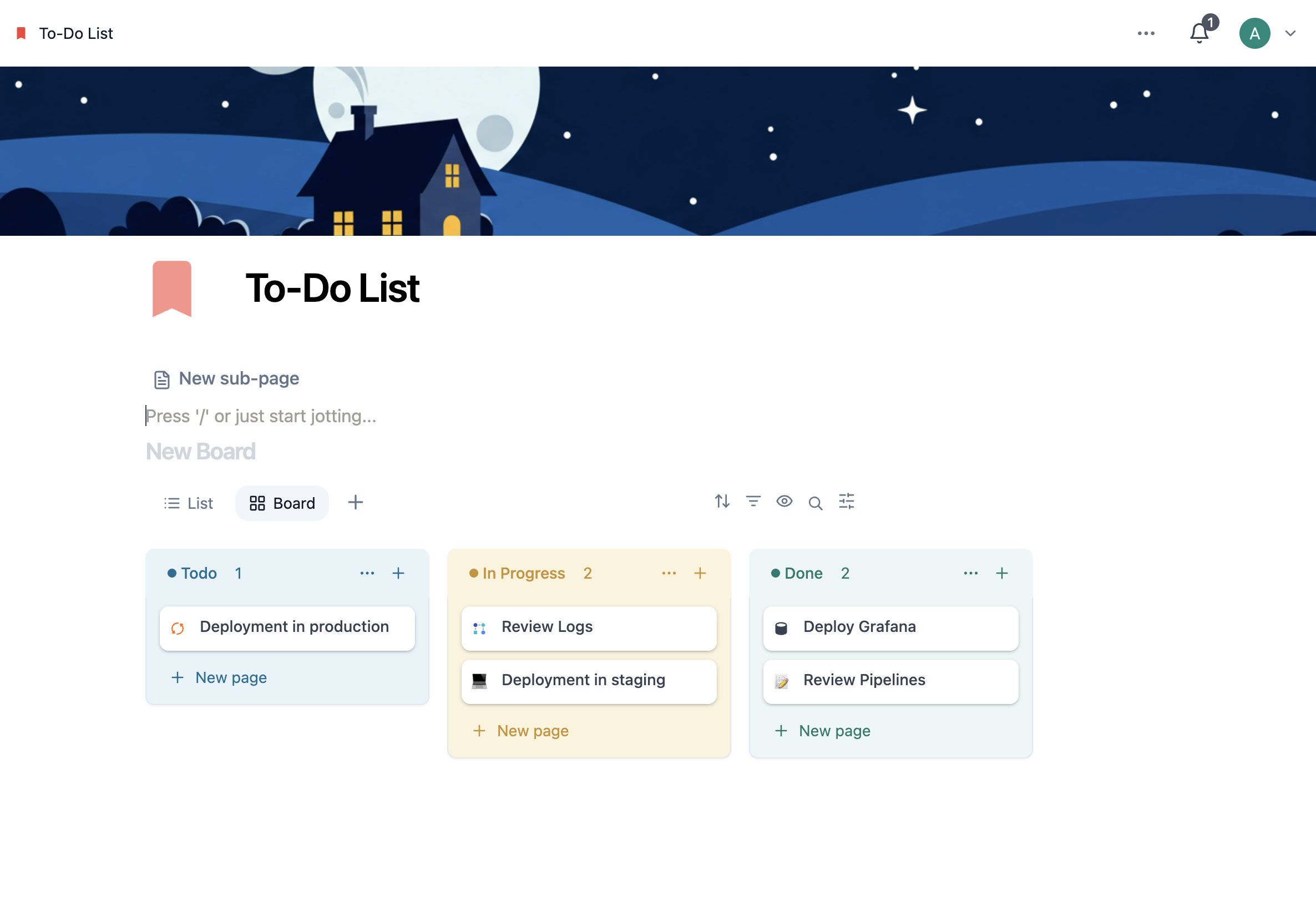
Other useful view types: Gallery for image-heavy databases, List for minimal documentation, Calendar for date-based content, and Timeline for visualizing project durations.
Filter and Sort Your Data
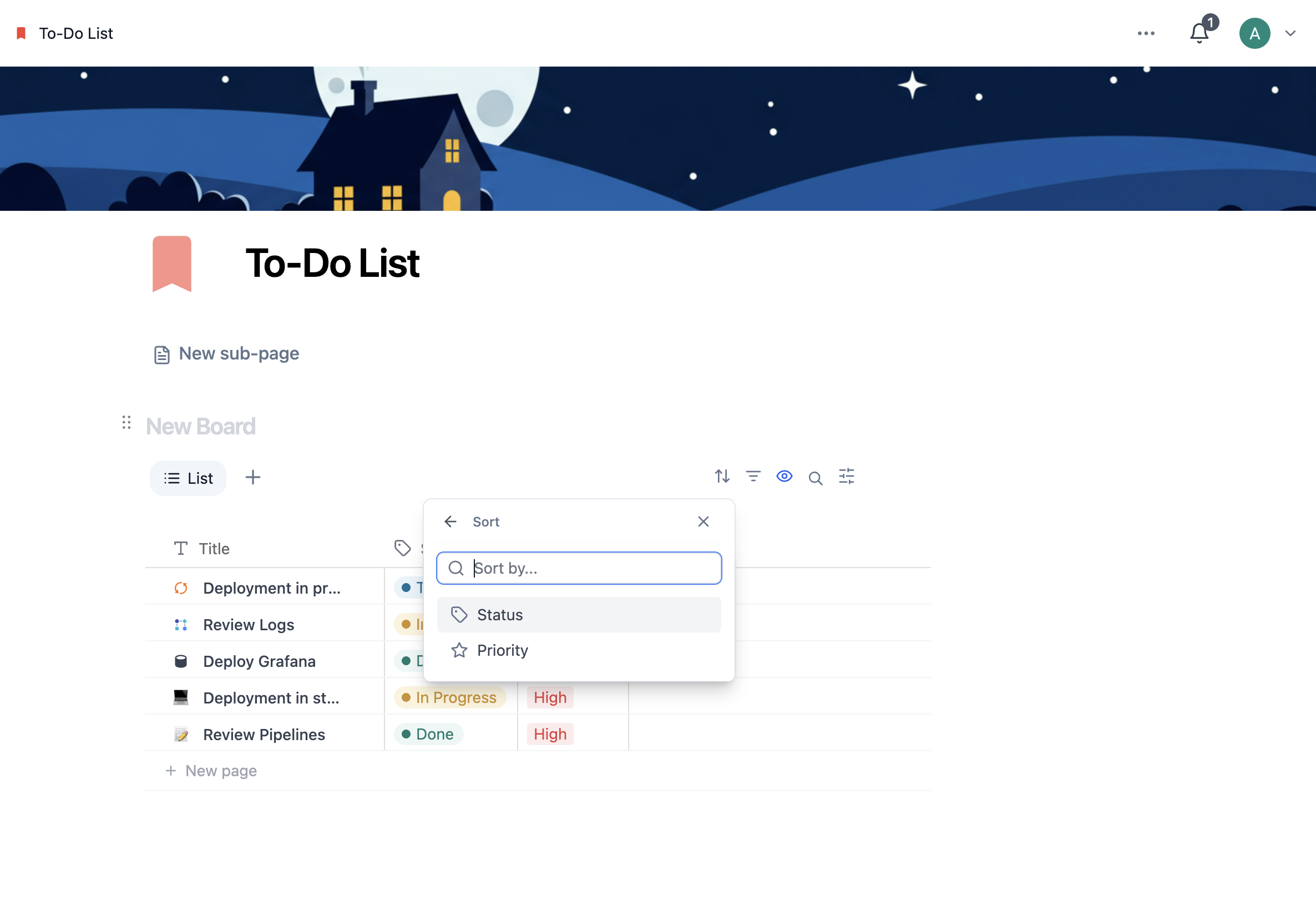
- Open the settings menu at the top right of your database
- Select Filter or Sort
- Choose the property to filter or sort by (e.g., filter for P1 tasks only, or sort by due date ascending)
- The database updates instantly — you can stack multiple filters and sorts at the same time
Up next: Start with a template — Skip the blank page and hit the ground running with a ready-made structure.