Intro to Formulas
Inside any Closot database, you can add a Formula property that performs calculations, evaluates conditions, and produces dynamic outputs based on the values of other properties in the same database. Formulas unlock a layer of intelligence on top of your raw data — turning a static table into something that thinks alongside you.
What You Can Build with Formulas
Formulas aren't limited to simple arithmetic. The same engine handles everything from basic date math to layered conditional logic. Here are two real-world examples to show the range.
Example 1 — Deadline & Status Tracking
Imagine a product launch database where each item has a Start Date, a Status, and a set of linked tasks. Three formulas working together can make this database self-monitoring:
1. Calculate a Due Date from Start Date
dateAdd(Start Date, 2, "week")
The dateAdd() function takes a date, adds a quantity, and returns the new date. Supported units: "years", "quarters", "months", "weeks", "days", "hours", "minutes".
2. Flag Overdue Items Automatically
if(and(now() > Due Date, Status != "Done"), "Overdue", "")
This formula evaluates two conditions simultaneously using and() — whether the current time has passed the due date, and whether the item isn't already marked done. If both are true, it outputs "Overdue". Otherwise it returns an empty string and stays invisible.
Want to make the overdue label visually pop? Use style() to add color and formatting:
if(and(now() > Due Date, Status != "Done"), style("Overdue", "red", "b"), "")
style() formatting options:
| Code | Effect |
|---|---|
b | Bold |
u | Underline |
i | Italic |
c | Code |
s | Strikethrough |
Valid colors: gray, brown, orange, yellow, green, blue, purple, pink, red
Append _background to any color to apply it as a background instead of text color — e.g., "red_background".
3. Count Linked Tasks
Tasks.length()
length() returns the number of items in a list. When applied to a Relation property, it counts how many related pages are linked.
Example 2 — Prioritization Scoring
A product backlog database where features compete for attention. Two formulas turn vague gut-feel prioritization into a data-driven ranking:
1. RICE Score
Reach * Impact * Confidence / Effort
A standard prioritization framework expressed as a single formula — multiply Reach, Impact, and Confidence, then divide by Effort. Sort the database by this formula to surface the highest-value, lowest-effort items instantly.
2. Count Upvotes from a Collaborator Property
length(Upvoted by)
If you have a Person property where teammates vote by adding their name, length() counts the total number of voters — giving you a live tally without any manual tracking.
Where Formulas Work
Formulas aren't limited to formula properties inside databases. You can use them in:
- Database formula properties — the most common use case
- Button actions — calculated values used by a button's actions
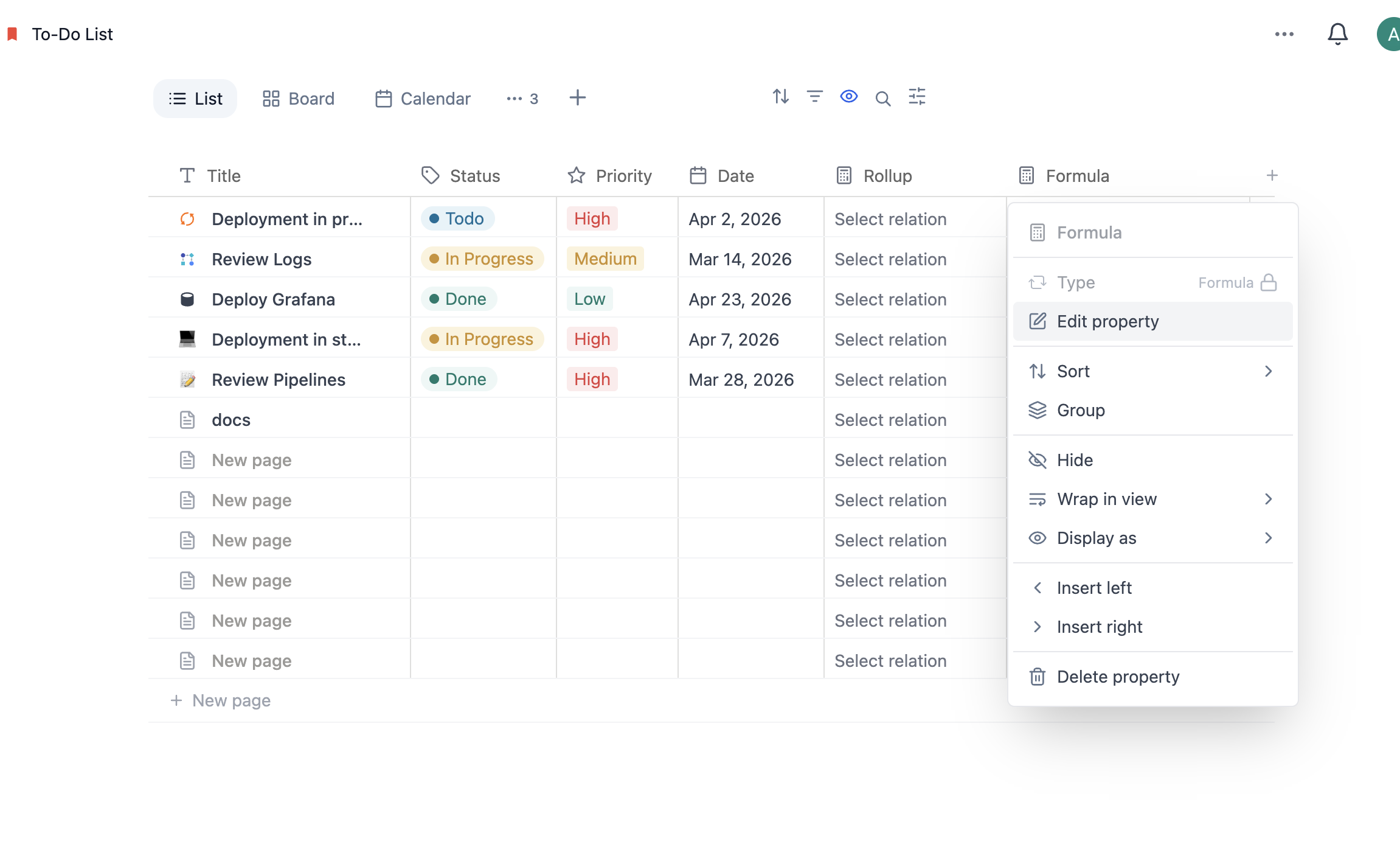
Create a Formula Property
- Click the slider icon at the top of your database
- Click Edit properties → New property
- Select Formula as the property type
- Optionally name the property
- Click Edit formula to open the formula editor
The Formula Editor
The editor has three zones:
- Top input field — type or paste your formula here
- Left panel — browse available database properties, built-in operators, and functions
- Right panel — documentation panel showing definitions and examples for whatever you've selected
- Live preview — visible when the editor is opened from inside a database row; shows the formula output for that specific item in real time
What a Formula Can Contain
Every formula is built from some combination of three components:
| Component | What it is | Examples |
|---|---|---|
| Properties | References to other database fields | prop("Due Date"), prop("Assignee") |
| Built-ins | Operators and boolean values | +, -, *, /, true, false, and, or |
| Functions | Named operations that return a computed value | if(), dateAdd(), replace(), sum(), sort() |
For the complete list of supported properties, built-ins, and functions — including parameters, return types, and syntax examples — see Formula syntax & functions.