Sprints
Sprints break ongoing work into fixed-length cycles so a team can commit to a realistic amount, finish it, and start fresh. Instead of an endless backlog, everyone sees what's in play right now, what's done, and what's queued next.
You can also insert a Sprint Board directly on any page by typing / and choosing it from the Options section of the menu.
Create a Sprint
Steps:
- Open the database
- Click settings → More settings
- Select Sprints
- Click Turn on sprints
Closot automatically creates:
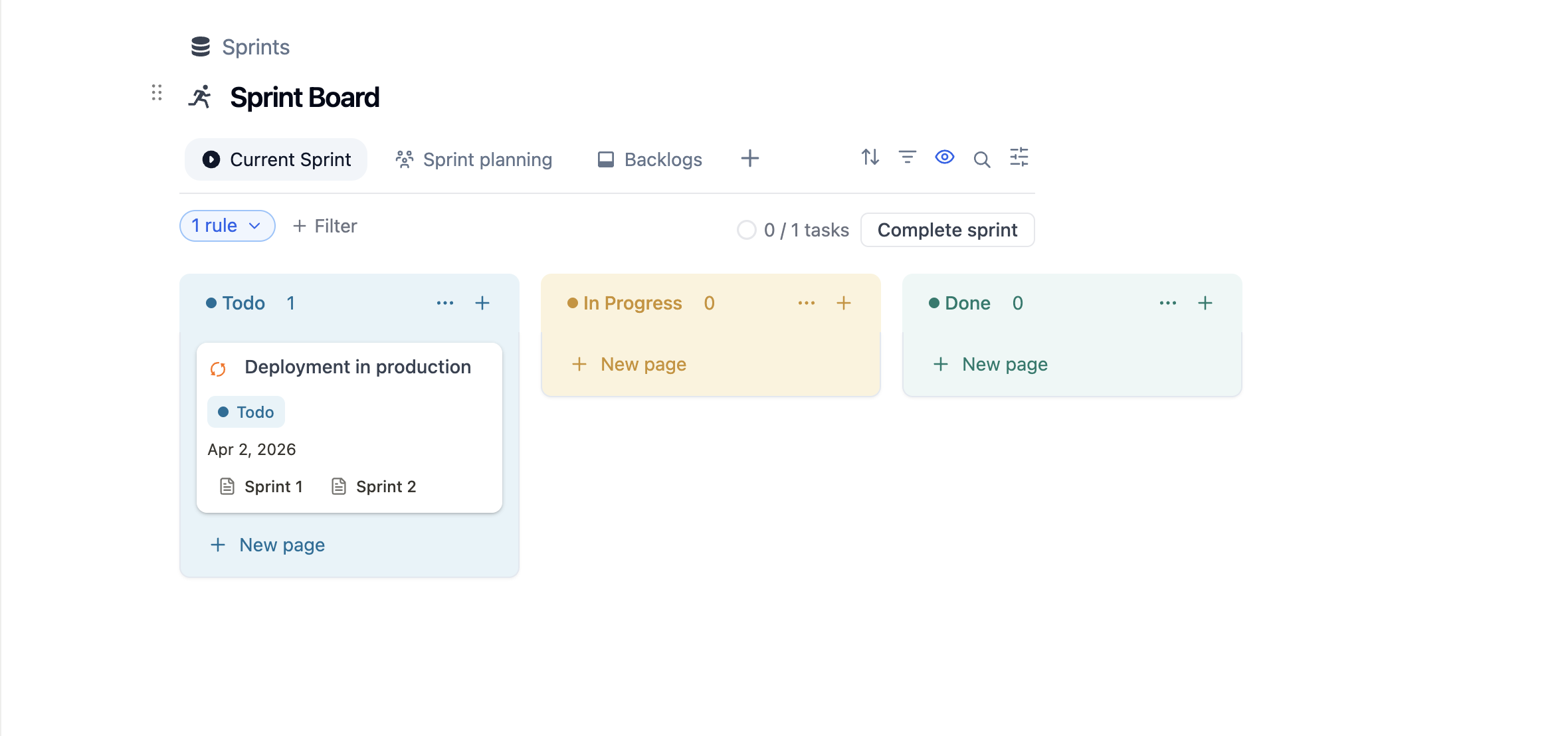
- A Sprint Board view showing items organized by sprint
- A Sprints database that tracks individual sprint records
- Built-in views: Current Sprint, Sprint Planning, and Backlog
Plan a Sprint
Use the Sprint Planning view to prepare your upcoming sprint:
- Review items sitting in the Backlog
- Drag unstarted or incomplete tasks from previous sprints or the backlog into the next sprint column
- Assign due dates, owners, and priorities before the sprint kicks off
The planning view is designed for team ceremonies — sprint planning meetings, backlog grooming sessions, or any sync where the team decides what goes into the next cycle.
Complete a Sprint
When a sprint ends, Closot helps you formally close it and carry forward anything that didn't get done.
Steps:
- Open the Current Sprint view
- Click Complete sprint
- Confirm the date range for the next sprint
- Choose what to do with incomplete tasks:
- Move them to the next sprint automatically
- Send them back to the Backlog
- Keep them in the completed sprint for reference
- Click to finalize
Sprint Settings
Fine-tune how sprints work for your team:
- Open settings → More settings
- Select Sprints
| Setting | Description |
|---|---|
| Duration | Choose sprint length: 1 to 8 weeks |
| Start day of week | Choose which day each sprint begins |
| Incomplete task handling | What happens to unfinished items when a sprint closes |
| Automated sprint completion | Enable auto-close when the sprint end date passes |
| Disable sprints | Turn off the sprint feature entirely (data is preserved) |
Up next: Data sources — Combine multiple databases into a single view with linked data sources.