Database Properties
Properties are the backbone of every Closot database. They're the structured fields that give each database item its context — what stage is this task in, who owns it, when is it due, how much does it cost, which team does it belong to? Without properties, a database is just a list of page titles. With them, it becomes a fully searchable, filterable, sortable data system.
Every property you create appears as a column in list view, and as a metadata field at the top of each individual database page.
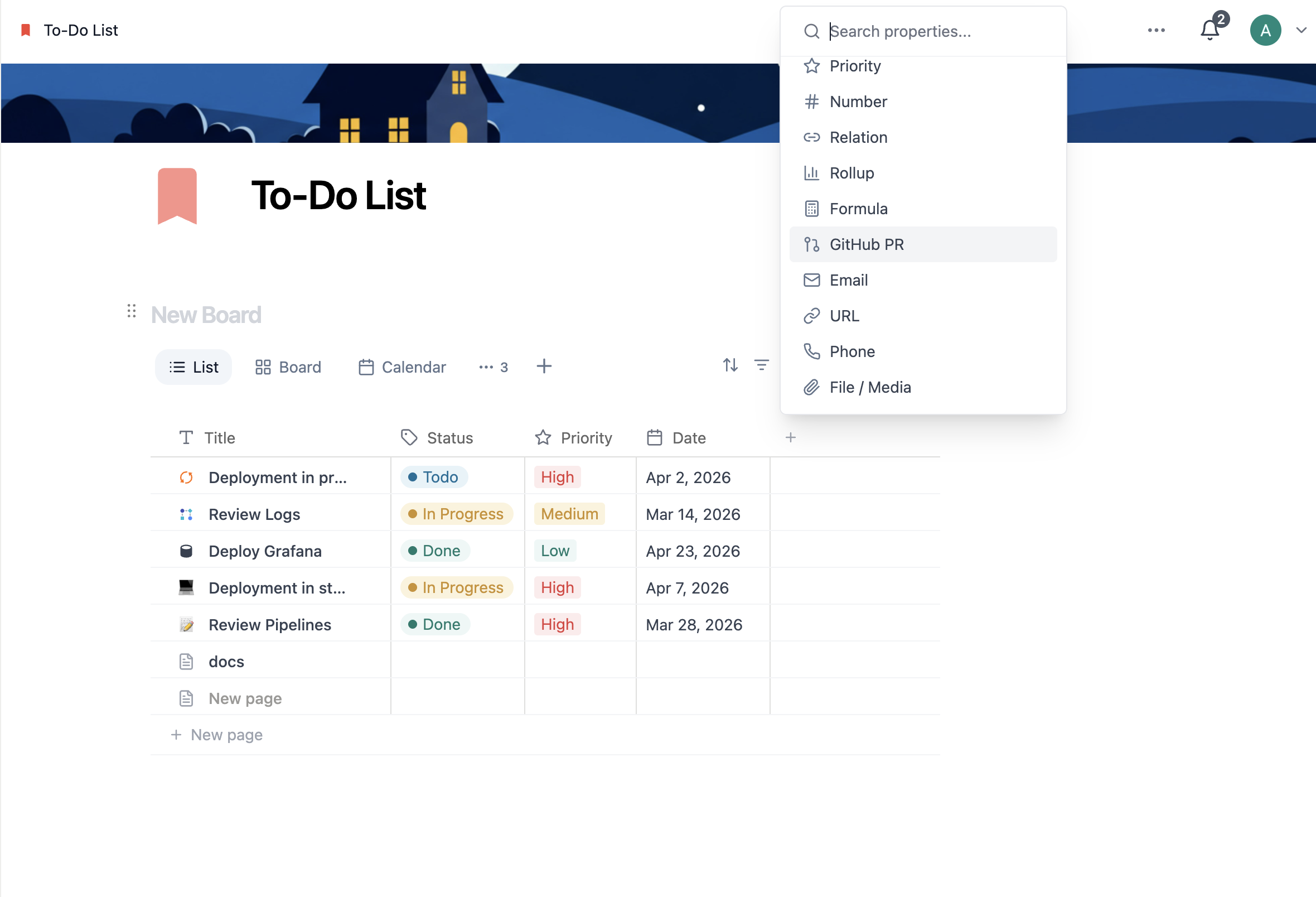
Types of Database Properties
Closot offers a rich set of property types, each designed for a specific kind of data:
Text
A freeform text field that supports rich formatting — bold, italic, links, and more. Perfect for short notes, descriptions, summaries, or any field that doesn't need to be structured data but benefits from being attached to the item.
Example: A "Brief" field on a marketing campaign tracker that holds a one-sentence description of each campaign's goal.
Number
Accepts any numerical value. Can be formatted as plain numbers, currency (USD, EUR, GBP, and more), or as a visual progress bar that fills based on a percentage value.
Example: A "Revenue" field on a client pipeline tracking the estimated deal size for each prospect.
Select
A dropdown where you choose one option from a pre-defined list of labeled tags. Each tag can have a custom color. Great for categorical fields where items can only belong to one bucket.
Example: A "Region" field on a sales territory database — each lead can only belong to one region: APAC, EMEA, or Americas.
Multi-Select
Like Select, but you can choose multiple options simultaneously. Use this when an item can legitimately belong to more than one category.
Example: A "Skills Required" field on a job requisitions database — a single role might require Python, SQL, and Data Visualization simultaneously.
Status
A purpose-built progress-tracking property with three default groups: To-do, In Progress, and Complete. Status works especially well as the grouping property on a board view, where each group becomes a column.
Example: A "Stage" field on a product feature backlog — items move from "Planned" to "In Development" to "Launched".
Priority
A dedicated field for ranking how urgent or important an item is, so you don't have to build the same thing out of a Select property every time. Because it's a distinct type, priority behaves consistently across every database in your workspace and pairs naturally with sorting and board grouping.
Example: A "Priority" field on a bug tracker so the team can sort the backlog by severity and pull the highest-impact issues into the current sprint.
ID
Automatically assigns a unique identifier to every item in the database. Values are generated by Closot and can't be edited by hand, which makes them dependable for referring to a specific item from somewhere else.
IDs are what the GitHub integration matches against when you reference a task from a pull request title or description.
Example: An "ID" property on a task database so tickets can be cited as PROJ-42 in commit messages, chat threads, and standup notes.
Date
Accepts a single date or a date range, with optional time specification. You can set reminders on date fields so Closot (and your connected calendar) notifies you before important deadlines.
Example: A "Go-Live Date" field on a website launch checklist, so the calendar view automatically surfaces upcoming launches.
Formula
A calculated property that runs logic based on the values of other properties. Formulas support math operations, conditional logic, date arithmetic, text manipulation, and more — using a syntax similar to spreadsheet functions.
Example: A "Days Until Renewal" formula on a subscription tracker that calculates the difference between today's date and the contract renewal date.
Relation
Links items in one database to items in another (or the same) database. Relations are how you build connected data systems in Closot — for example, linking each task to the project it belongs to, or each invoice to the client it was sent to.
Example: A "Team Member" relation on a sprint board that connects each task to the relevant person's profile in a separate People directory database.
Rollup
Works alongside a Relation property to aggregate information from the linked database. Once a relation is set up, a Rollup can calculate things like the total number of linked items, the sum of a numeric property across all related records, or the earliest/latest date among them.
Example: A "Total Budget Spent" rollup on a projects database that sums up all the invoice amounts from the linked Invoices database.
Person
Tag workspace members or groups directly in a property field. Perfect for assignments, ownership, approvals, or tracking who's responsible for what.
Example: An "Account Manager" field on a client CRM where each account is assigned to the team member managing the relationship.
File/Media
Upload files and images directly into the database item. Useful for storing documents, contracts, reference assets, or any binary file that belongs alongside the record.
Example: A "Signed Contract" file property on a client database — each client's executed agreement is attached right there in the record.
Checkbox
A simple true/false toggle. When checked, the item is marked as true; unchecked means false. Works well for binary flags like "Reviewed", "Approved", or "Featured".
Example: A "Published" checkbox on a blog post database — the editorial team checks it off once an article goes live.
URL
A link field where the value opens in a new browser tab when clicked. Stores any web address cleanly.
Example: A "Design Mockup" URL on a feature spec database linking to the corresponding Figma file.
Email
Stores an email address and opens the device's mail client when clicked. Automatically formats and validates email syntax.
Example: A "Primary Contact" email field on a vendor database so the team can reach suppliers directly from the record.
Phone
Stores a phone number and prompts a call on devices that support it. Useful for any database that needs quick-dial access.
Example: An "On-Call Engineer" phone property on an incident response tracker.
Github PR
Directly links a GitHub Pull Request to a database item, pulling in real-time status updates like Open, Merged, or Draft. It bridges the gap between project planning and actual code execution.
Example: A "Development" property on a Sprint Board that shows if a feature's code is still in review or ready for deployment.
Editing Properties
Access the full property management panel through the settings menu → Edit properties. From here you can:
- Search for a specific property by name
- Create new properties from scratch
- Edit any existing property — change its name, type, or type-specific settings
- Duplicate a property to copy its configuration
- Delete a property (this removes it from all database items permanently)
- Reorder properties using the drag handles
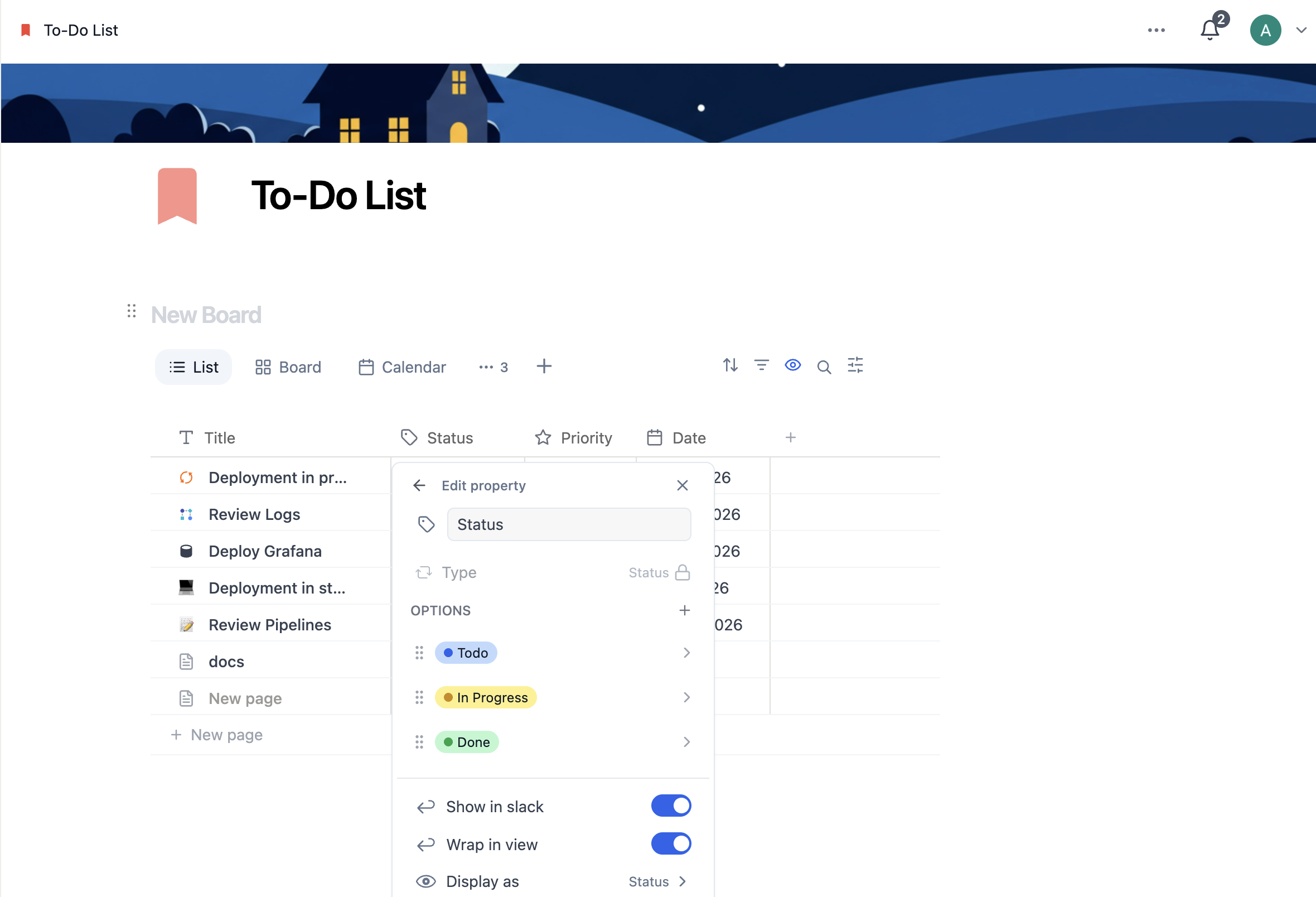
Type-Specific Configuration
Different property types have unique settings:
Select / Multi-Select — create tag options, assign colors to each tag, and drag options to define a custom sort order
Date — configure date format, time format, timezone, and reminder settings
Number — choose display format (plain number, currency, percentage, progress bar)
Person — set a Limit on how many people can be selected, a Default value for new items, and whether Notifications go to users only; Display as controls how the value is rendered
Files & Media — drag files directly into the property cell, or click to upload or paste a URL; manage multiple files per item
Formula — write logic using Closot's formula editor with syntax highlighting
Relation — select the target database, enable two-way sync, set single vs. multiple page limits
Showing and Hiding Properties
You can control which properties are visible in each view independently. Some properties might be critical in one view and irrelevant in another.
1.Click the 👁️ eye icon on the top right part of the database
2.Click the 👁️ eye icon next to any property to toggle it on or off for this view.
Properties hidden in a view are still present on every database page — they just don't show up in the view's columns or cards.
Conditional Color
Conditional color shades items automatically based on their property values, so patterns in a dataset are visible at a glance — overdue items in red, completed work in green, high-priority tickets highlighted.
To set it up:
- Open View settings → Edit properties
- Select the property you want to drive the coloring
- Turn on Conditional color and define a color for each value or condition
The coloring carries across view types, so the same rules apply whether you're looking at a list, a board, or a timeline.
Assign Permissions via Person Properties
When you @-mention someone in a Person property on a database page, you can grant them a specific access level for that page directly from the property. It's a quick way to give targeted page-level access without opening the full Share menu.
Up next: Relations & rollups — Connect databases to each other and aggregate data across relationships.